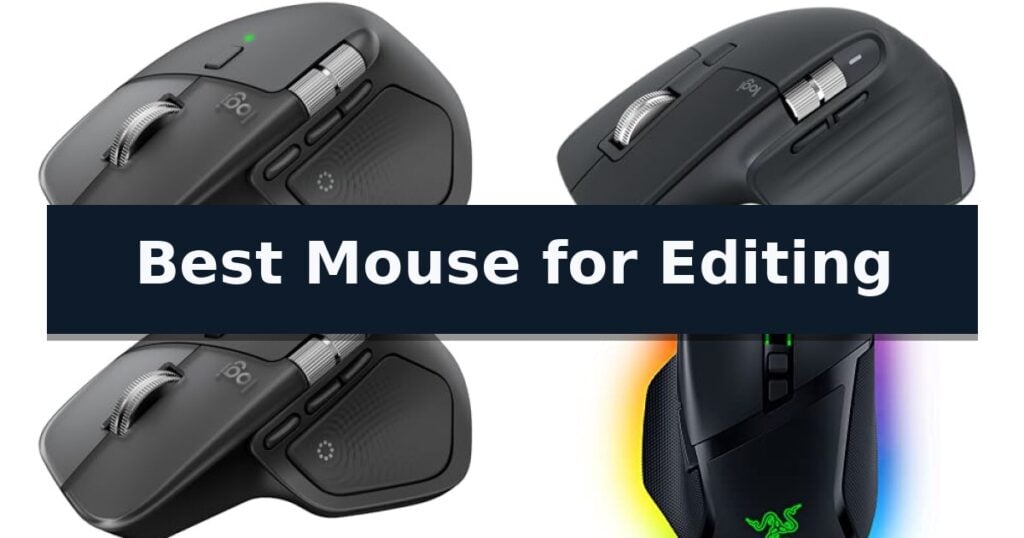
Logitech MX Master 4 Wireless Mouse is our pick for the Best Mouse for Editing because its Haptic Sense Panel and customizable Actions Ring provide tactile, app-specific control for complex creative tasks. The Logitech MX Master 3S Wireless Mouse serves as a reliable alternative for users prioritizing quiet operation, while the TECKNET Wireless Mouse offers an accessible entry point for those needing dedicated side-scroll functionality for timeline navigation.
Selecting a mouse for professional editing requires balancing physical comfort with software-level efficiency. An ideal device minimizes repetitive strain while accelerating common actions like scrubbing timelines, adjusting filter parameters, or navigating large canvases across high-resolution displays.
For professionals focused on technical design, our guide on the Best Mouse for Drafting provides additional insights into precision-oriented hardware.
10 Best Mouse for Editing in 2026 Reviews
Quick Comparison
| Product | Best For | Key Strength | Score |
|---|---|---|---|
| Logitech MX Master 4 Wireless Mouse | Best Overall | Haptic Sense Panel provides customizable physical feedback for improved workflow precision. | 4.9 |
| Logitech MX Master 3S Wireless Mouse | Quiet clicks for focused workflows | 8000 DPI sensor provides high-precision tracking on glass and other surfaces. | 4.3 |
| Logitech MX Master 4 for Mac | Optimized for Apple creative setups | Haptic Sense Panel for tactile feedback on shortcuts. | 4.6 |
| Razer Basilisk V3 Gaming Mouse | Eleven buttons for complex macros | 11 programmable buttons for efficient macro execution | 4.6 |
| TECKNET Wireless Mouse | Side scroll for timeline navigation | Side-mounted scroll wheel for efficient horizontal navigation | 4.9 |
| SABLUTE MAM51 Ergonomic Mouse | Thumb wheel for spreadsheet control | 3-in-1 multifunction thumb wheel for efficient horizontal scrolling and zoom control. | 4.7 |
| Logitech G305 LIGHTSPEED Gaming Mouse | Lag-free performance for quick edits | Ultra-fast LIGHTSPEED wireless technology for lag-free performance. | 4.6 |
| Redragon M908 Wired Gaming Mouse | Weight-tuned for custom handling | 18 programmable buttons for complex macro efficiency. | 4.7 |
| Logitech Lift Vertical Ergonomic Mouse | Natural posture for long sessions | 57-degree vertical angle promotes a more natural forearm posture. | 4.4 |
| Logitech M720 Triathlon Wireless Mouse | Multi-device switching for multitasking | Multi-device switching between up to three computers. | 4.3 |
How We Chose
When evaluating the best mouse for editing, we focus on how hardware features translate into tangible workflow efficiency. We prioritize devices that offer deep customization through software, ergonomic shapes that reduce fatigue during extended sessions, and high-precision sensors that ensure every adjustment is accurate, regardless of the surface or display resolution.
- Customizable shortcut integration for creative software
- Ergonomic design and wrist support for long sessions
- Precision of tracking sensors on varied surfaces
- Tactile feedback and scroll wheel versatility
- Multi-device connectivity and software compatibility
1 Logitech MX Master 4 Wireless Mouse — Haptic feedback for precise editing
The Logitech MX Master 4 Wireless Mouse introduces a tactile dimension to digital workflows through its integrated Haptic Sense Panel, which provides customizable haptic feedback for specific actions, shortcuts, and notifications. This feature is designed to offer physical confirmation of inputs, potentially increasing precision during intensive editing tasks.
Beyond its haptic capabilities, the mouse features the MagSpeed scroll wheel, engineered to scroll up to 1,000 lines per second while maintaining pixel-level stopping accuracy. This mechanism is optimized for both speed and quiet operation, complemented by Quiet Clicks technology that reduces click noise by 90% compared to standard models.
For software-specific efficiency, the device includes an Actions Ring, a dynamic, customizable overlay that adapts to the active application. This interface allows users to map frequently used filters, adjustments, and shortcuts directly to the cursor. The ergonomic chassis incorporates a natural tilt and a dedicated thumb scroll wheel to support hand comfort during extended use.
Connectivity options include a USB-C dongle utilizing an advanced radio chip and optimized antenna for reliable performance, alongside Bluetooth versatility. The mouse is constructed with recycled materials, including 54% recycled plastic in the Graphite model and 100% recycled cobalt in the battery, and includes a 1-month Adobe Creative Cloud subscription.
Best for: Professional editors and creators who require tactile feedback and customizable shortcuts to streamline complex software workflows.
Skip if: Users who prefer a lightweight, ambidextrous design or those who do not require advanced haptic and software-specific mapping features.
- Haptic Sense Panel provides customizable physical feedback for improved workflow precision.
- MagSpeed scroll wheel allows for high-speed navigation and pixel-perfect control.
- Actions Ring offers app-specific, customizable shortcuts at the cursor.
- Quiet Clicks technology significantly reduces operational noise for focused environments.
- Ergonomic design is specifically tailored for right-handed users, limiting versatility for left-handed editors.
2 Logitech MX Master 3S Wireless Mouse — Quiet clicks for focused workflows
Precision and comfort are essential for long sessions in creative software, and the Logitech MX Master 3S Wireless Mouse is engineered to address these needs through its refined ergonomic silhouette. Designed to support a more natural wrist posture, this peripheral integrates specialized thumb controls that allow for efficient navigation and command execution during complex editing tasks.
The device features MagSpeed scrolling, which provides significant improvements in speed and precision compared to standard wheels, allowing for near-silent operation. For users working in varied environments, the 8000 DPI sensor enables high-accuracy tracking on virtually any surface, including glass, ensuring consistent cursor movement without the need for a dedicated mouse pad.
Workflow optimization is managed through the Logi Options+ app, which supports app-specific profiles to customize button assignments for different software environments. The mouse also incorporates Quiet Clicks technology, which maintains a tactile, satisfying response while reducing click noise by 90%, making it suitable for shared workspaces or quiet studio settings.
Connectivity is handled exclusively via Bluetooth, supporting up to three devices simultaneously with FLOW cross-computer control. This allows for the seamless transfer of text, images, and files between Windows and macOS systems. The unit is constructed with a portion of certified post-consumer recycled plastic, reflecting a focus on material efficiency.
Best for: Professional editors and creators who require high-precision tracking, customizable button mapping, and multi-device workflow integration.
Skip if: Users who prefer a wired connection or require a dedicated USB receiver, as this model is Bluetooth-only and does not include a USB adapter.
- 8000 DPI sensor provides high-precision tracking on glass and other surfaces.
- MagSpeed scrolling offers faster and more precise navigation.
- Quiet Clicks reduce noise output by 90% while maintaining tactile feedback.
- App-specific profiles allow for extensive workflow customization.
- Bluetooth-only connectivity lacks a bundled USB receiver for legacy systems.
- No included charging cable requires users to provide their own compatible hardware.
3 Logitech MX Master 4 for Mac — Optimized for Apple creative setups
Precision control is essential for creative workflows, and the Logitech MX Master 4 for Mac introduces a Haptic Sense Panel that provides tactile feedback for specific actions and shortcuts. This feature allows users to feel their adjustments, enhancing productivity during intensive editing sessions by providing physical confirmation for digital inputs.
Designed specifically for Apple ecosystems, the Logitech MX Master 4 for Mac features a refined aesthetic that complements macOS setups. The mouse incorporates the MagSpeed scroll wheel, which enables users to scroll through 1,000 lines per second while maintaining pixel-level precision. This combination of speed and accuracy is particularly beneficial for navigating long timelines or complex project files.
Ergonomics remain a priority, as the Logitech MX Master 4 for Mac utilizes a natural tilt and an intuitive thumb scroll wheel to reduce hand stress during extended use. The inclusion of Quiet Clicks technology reduces operational noise by 90%, making it a suitable choice for focused environments where minimizing distractions is a requirement.
Customization is handled through the Actions Ring, a dynamic overlay that adapts to the active application to place frequently used filters and tools directly at the cursor. The device also supports USB-C charging and is constructed with a significant portion of recycled plastic, reflecting a focus on sustainable design without compromising the build quality or stain resistance.
Best for: Creative professionals working within the macOS ecosystem who require high-precision scrolling and customizable haptic controls for editing software.
Skip if: Users who primarily operate on non-Apple systems or those who prefer a lightweight, ambidextrous mouse design rather than an ergonomic, right-handed form factor.
- Haptic Sense Panel for tactile feedback on shortcuts.
- MagSpeed scroll wheel for high-speed, precise navigation.
- Quiet Clicks technology reduces noise by 90%.
- Actions Ring provides app-specific tool customization.
- Right-handed ergonomic design is not suitable for left-handed users.
- Charging cable not included in the box.
4 Razer Basilisk V3 Gaming Mouse — Eleven buttons for complex macros
Precision and rapid response are essential when navigating complex timelines or fine-tuning creative assets. The Razer Basilisk V3 Gaming Mouse addresses these needs by integrating a high-performance Focus+ 26K DPI Optical Sensor, which provides pixel-precise tracking without smoothing, ensuring every movement translates accurately on screen.
For power users, the device offers 11 programmable buttons that allow for the assignment of complex macros and secondary functions. This capability streamlines repetitive editing tasks, such as switching tools or executing multi-step commands, directly from the mouse. The inclusion of the HyperScroll Tilt Wheel further enhances productivity, enabling users to toggle between a free-spin mode for rapid navigation through long documents and a tactile mode for controlled, precise scrolling.
The ergonomic design features a dedicated thumb rest, which supports the hand during extended editing sessions to reduce strain. Durability is addressed through Optical Mouse Switches Gen 2, rated for up to 70 million clicks with a 0.2ms actuation speed, ensuring consistent performance over time. Additionally, the 11 Razer Chroma RGB lighting zones offer visual customization, allowing users to coordinate their workspace aesthetic.
To achieve optimal performance, users can utilize the Razer Synapse App to calibrate the sensor and manage button assignments. By disabling Windows-based pointer acceleration, the mouse provides a consistent, raw input experience that is vital for detailed work. This combination of hardware customization and ergonomic support makes it a versatile tool for demanding digital workflows.
Best for: Editors who require extensive macro customization and a high-precision sensor for detailed, long-duration work.
Skip if: Users who prefer a minimalist, lightweight design or those who require a wireless connection for a clutter-free desk.
- 11 programmable buttons for efficient macro execution
- HyperScroll Tilt Wheel for versatile navigation modes
- Focus+ 26K DPI sensor for high-accuracy tracking
- Ergonomic form factor with integrated thumb rest
- Wired-only connection limits desk placement flexibility
- Heavier build compared to ultra-lightweight productivity mice
5 TECKNET Wireless Mouse — Side scroll for timeline navigation
Navigating complex timelines and expansive spreadsheets requires hardware that keeps pace with your workflow, and the TECKNET Wireless Mouse addresses this with a dedicated side-mounted scroll wheel. This specific design choice allows for effortless horizontal navigation, helping you scan through large design canvases or wide data sets without needing to constantly adjust your view.
Beyond its specialized scrolling capabilities, the TECKNET Wireless Mouse offers a high-performance sensor with 6 adjustable DPI levels ranging from 800 to 4800. An integrated LED indicator provides visual confirmation of your current setting, ensuring you can toggle between precise, granular control for detailed editing and faster cursor speeds for general browsing.
Connectivity is a core strength, as the device supports seamless 3-device switching via two Bluetooth 5.3/5.0 channels and a 2.4GHz USB-A receiver. This allows you to manage multiple workstations or devices simultaneously with a single button press, streamlining your desk setup by reducing the need for multiple peripherals.
Designed for long-term comfort and convenience, the mouse features quiet clicks to minimize distractions in shared environments. It is powered by a rechargeable battery that supports up to 3 months of use on a single 1.5–2 hour charge, and it includes an auto-sleep function that triggers after 10 minutes of inactivity to preserve power.
While this model is packed with productivity-focused features, it is important to note that all buttons are non-programmable, meaning you cannot remap them to specific software shortcuts. Additionally, while it is compatible with macOS, the side buttons do not function within that operating system, which is a key consideration for Apple users.
Best for: Editors and professionals who frequently navigate wide spreadsheets or complex timelines and require multi-device connectivity.
Skip if: Users who rely on custom macro programming or require full side-button functionality on macOS systems.
- Side-mounted scroll wheel for efficient horizontal navigation
- 3-device switching via Bluetooth and 2.4GHz USB-A
- 6-level adjustable DPI for tailored cursor precision
- Quiet click switches for noise-sensitive environments
- Rechargeable battery with long-lasting performance
- Non-programmable buttons limit custom shortcut mapping
- Side buttons are unsupported on macOS devices
6 SABLUTE MAM51 Ergonomic Mouse — Thumb wheel for spreadsheet control
Navigating complex spreadsheets and long documents requires hardware that keeps pace with your workflow, and the SABLUTE MAM51 Ergonomic Mouse introduces a dedicated 3-in-1 thumb wheel to streamline these tasks. By allowing for horizontal scrolling, app switching, and zoom control, this feature aims to reduce the need for constant hand movement during intensive data analysis or editing sessions.
Designed with a 59° handshake-style angle, the SABLUTE MAM51 Ergonomic Mouse prioritizes a more natural wrist posture for users with small to medium hands. This vertical orientation is intended to provide comfortable palm support and easier access to the eight programmable buttons, which can be beneficial for those spending long hours at a computer.
Connectivity is handled through a flexible dual-mode system, supporting both Bluetooth and a 2.4GHz USB receiver. This plug-and-play design ensures compatibility across Windows, macOS, ChromeOS, and Linux without requiring driver installation. For precision, the device offers four-level DPI control, ranging from 1200 to 4000 DPI, allowing users to adjust cursor sensitivity based on the specific requirements of their editing software or screen resolution.
To maintain efficiency, the mouse includes an automatic sleep mode that activates after 10 minutes of inactivity, helping to conserve battery life. The USB receiver can be stored directly inside the battery compartment, making it a practical choice for those who move between different workstations.
Best for: Users with small to medium hands who frequently work with wide spreadsheets and require a vertical design to improve wrist comfort during long editing sessions.
Skip if: Users with large hands or those who prefer a traditional flat mouse design, as the vertical form factor requires a brief adjustment period.
- 3-in-1 multifunction thumb wheel for efficient horizontal scrolling and zoom control.
- 59° ergonomic vertical angle to promote a more natural wrist position.
- Dual-mode wireless connectivity via Bluetooth and 2.4GHz USB receiver.
- Adjustable 4-level DPI precision up to 4000 DPI for varied tasks.
- Vertical grip design may require an adjustment period for first-time users.
- Size-specific build optimized primarily for small to medium hands.
7 Logitech G305 LIGHTSPEED Gaming Mouse — Lag-free performance for quick edits
Precision and responsiveness are the primary requirements for any creative workflow, and the Logitech G305 LIGHTSPEED Wireless Gaming Mouse addresses these needs by integrating ultra-fast wireless technology. By utilizing a 1 ms report rate, this device ensures that every movement and click is registered without the latency often associated with wireless peripherals.
At the core of its performance is the HERO sensor, which provides high-precision tracking up to 12,000 DPI. This sensor is engineered for power efficiency, allowing the mouse to operate for up to 250 hours on a single AA battery. For extended use, users can toggle to Endurance mode via software to stretch battery life up to 9 months, reducing the frequency of maintenance.
The physical design prioritizes maneuverability, weighing only 3.4 oz. This lightweight construction is paired with a compact, durable chassis that includes a built-in slot for the nano receiver, making it a practical choice for those who move between workstations or travel with a laptop. With 6 programmable buttons and on-board memory, the mouse allows for customized control schemes that remain accessible across different computers.
While it offers significant benefits for productivity, the mouse relies on a standard AA battery rather than an integrated rechargeable cell, which may be a consideration for those who prefer internal charging. However, the combination of high-speed connectivity and efficient power management makes it a highly capable tool for demanding editing tasks.
Best for: Editors who require a lightweight, lag-free wireless mouse with long battery life for both stationary and mobile workstations.
Skip if: Users who prefer a rechargeable internal battery or require an ergonomic shape specifically contoured for long-term palm-grip comfort.
- Ultra-fast LIGHTSPEED wireless technology for lag-free performance.
- HERO optical sensor provides high-precision tracking up to 12,000 DPI.
- Extended battery life lasting up to 250 hours or 9 months in Endurance mode.
- Lightweight 3.4 oz design enhances maneuverability during long editing sessions.
- Requires AA battery instead of an integrated rechargeable power source.
- Compact size may not suit users who prefer larger, ergonomic mouse profiles.
8 Redragon M908 Wired Gaming Mouse — Weight-tuned for custom handling
Precision and customization define the Redragon M908 Wired Gaming Mouse, a peripheral engineered for users who require granular control over their input devices. Featuring a high-precision Pixart PAW3327 Sensor with a maximum sensitivity of 12400 DPI, this mouse allows for fine-tuned adjustments in increments of 100 DPI via dedicated software, ensuring that cursor movement matches specific workflow requirements.
The physical design prioritizes versatility through an extensive array of 18 programmable buttons, including 12 side-mounted keys ideal for complex macro assignments. To accommodate different handling preferences, the device includes an 8-piece weight tuning set (2.4g each), allowing users to modify the physical mass of the mouse for improved stability or comfort during extended sessions.
Reliability is supported by a 1000 Hz polling rate and a 6ft braided-fiber cable terminated with a gold-plated USB connector, which maintains a stable, lag-free connection. The chassis is equipped with durable TEFLON feet pads designed to facilitate smooth gliding across various desktop surfaces.
For those who prefer a personalized aesthetic, the Redragon M908 Wired Gaming Mouse offers 16.8 million RGB LED color options across five memory profiles, each identifiable by a unique light color. While the lighting provides visual feedback for profile switching, it can be fully disabled if a minimalist appearance is preferred.
Best for: Users who require extensive macro-key customization and adjustable physical weight for specialized software workflows.
Skip if: Users who prefer a lightweight, minimalist design or those who require wireless connectivity for a clutter-free desk.
- 18 programmable buttons for complex macro efficiency.
- Adjustable weight system with eight 2.4g removable weights.
- High-precision 12400 DPI optical sensor.
- Durable braided-fiber cable with gold-plated connector.
- Wired-only connection limits desk placement flexibility.
- Aggressive ergonomic design may not suit all hand sizes.
9 Logitech Lift Vertical Ergonomic Mouse — Natural posture for long sessions
The Logitech Lift Vertical Ergonomic Mouse features a unique 57-degree vertical design intended to promote a more natural forearm posture during extended periods of use. By shifting the hand into a handshake position, this device aims to reduce strain compared to traditional flat mouse designs.
Engineered for productivity, the mouse includes customizable buttons and a SmartWheel for efficient scrolling. The device is built with whisper-quiet clicks to maintain a focused environment, while the softly textured grip and dedicated thumb rest provide additional comfort for small to medium-sized hands.
Connectivity is handled via Bluetooth Low Energy or the included Logi Bolt USB-A receiver, ensuring compatibility with Windows, macOS, iPadOS, Chrome OS, and Linux. The unit is designed for longevity, boasting a battery life of up to two years, and incorporates certified post-consumer recycled plastic in its construction.
This mouse is ergo-certified, having been developed and tested against criteria established by professional ergonomists. While it offers significant ergonomic benefits, users should note that its specific vertical form factor is optimized for small to medium hands, which may impact comfort for those with larger grips.
Best for: Users with small to medium hands seeking a vertical ergonomic solution to improve forearm posture during long editing or office sessions.
Skip if: Users with large hands or those who prefer a traditional low-profile mouse design may find the vertical orientation and size of this model less comfortable.
- 57-degree vertical angle promotes a more natural forearm posture.
- Whisper-quiet clicks and SmartWheel scrolling for focused work.
- Flexible dual-connectivity via Bluetooth or Logi Bolt receiver.
- Ergo-certified design developed with professional input.
- Size constraint optimized specifically for small to medium hands.
- Vertical orientation requires an adjustment period for users accustomed to standard mice.
10 Logitech M720 Triathlon Wireless Mouse — Multi-device switching for multitasking
Navigating complex digital workspaces often requires hardware that can keep pace with multiple active projects simultaneously. The Logitech M720 Triathlon Wireless Mouse is engineered to address this by allowing users to pair with up to three different computers or tablets at once. With a simple press of a dedicated button, you can transition your control between devices, eliminating the need to physically disconnect and reconnect peripherals during your editing workflow.
Beyond its multi-device switching, this mouse incorporates Logitech FLOW technology. This feature enables the cursor to move seamlessly across multiple screens, even allowing for the transfer of text and files between connected systems. This capability is particularly useful for editors who utilize a primary workstation for heavy processing while keeping a secondary device open for research, communication, or file management.
The physical design of the Logitech M720 Triathlon Wireless Mouse prioritizes long-term comfort with a sculpted, right-handed shape and a rubberized grip. This ergonomic focus helps reduce strain during extended editing sessions. Productivity is further bolstered by 6 customizable buttons, which can be mapped to specific application shortcuts via Logitech software, allowing for a more efficient and personalized control scheme.
For precision tasks, the mouse features a hyper-fast scroll wheel that can be toggled between a free-spinning mode for navigating long documents and a precision click-to-click mode for granular control. Connectivity is handled through either Bluetooth or the included Logitech Unifying receiver, which supports up to six compatible devices on a single USB port. With a 24-month battery life, the device is built to remain operational through long-term, high-demand professional use.
Best for: Professionals who manage multiple computers simultaneously and require customizable shortcuts for complex editing workflows.
Skip if: Users who require a symmetrical, ambidextrous design or those who prefer an ultra-lightweight mouse for rapid, high-intensity gaming movements.
- Multi-device switching between up to three computers.
- Logitech FLOW support for seamless file and text transfer.
- Hyper-fast scrolling wheel with precision click-to-click mode.
- Long-lasting 24-month battery life for reduced maintenance.
- Right-handed ergonomic shape is not suitable for left-handed users.
- Full-size dimensions may be less portable than compact travel mice.
Best Mouse for Editing Buying Guide
Ergonomics and Long-Term Comfort
Editing sessions often span several hours, making the physical shape of your mouse a critical factor. Vertical or sculpted designs help maintain a more natural forearm posture, reducing the likelihood of wrist strain during repetitive tasks.
Look for materials that offer a secure grip and buttons positioned to minimize finger travel. A well-designed mouse should feel like a natural extension of your hand, allowing for fluid navigation without requiring awkward contortions.
Customization and Workflow Acceleration
The ability to map specific tools to mouse buttons can significantly reduce the time spent navigating menus. Advanced mice allow you to create app-specific profiles, ensuring your shortcuts change automatically when you switch from a video editor to a photo manipulation suite.
Consider how easily you can access these shortcuts. Features like side-mounted scroll wheels or dedicated action rings allow for precise adjustments to timeline zoom, brush size, or color grading parameters without moving your cursor away from the work area.
Precision and Sensor Performance
Editing requires pixel-perfect accuracy, especially when masking, cutting, or performing fine adjustments. A high-DPI sensor ensures that your cursor movements are smooth and responsive, even on large 4K or multi-monitor setups.
Surface compatibility is equally important. A mouse that tracks reliably on glass or wood desks ensures consistent performance, preventing the frustration of erratic cursor behavior during critical editing moments.
Connectivity and Multi-Device Support
Modern creative workflows often involve multiple machines, such as a primary workstation and a laptop for mobile work. Mice that support seamless switching between devices via Bluetooth or dedicated receivers allow you to maintain a consistent setup across your entire environment.
Reliable wireless connectivity is essential to avoid input lag. Look for advanced radio chips or low-latency Bluetooth implementations that ensure your mouse remains responsive even in environments with high signal interference.
Tactile Feedback and Scrolling
The scroll wheel is one of the most used components in an editor's toolkit. Features like electromagnetic or mag-speed scrolling allow you to zip through long timelines or documents instantly, while a tactile mode provides the precision needed for frame-by-frame navigation.
Haptic feedback can further enhance this experience by providing physical confirmation of adjustments. This sensory input helps you make precise changes without needing to constantly look at on-screen values, keeping your focus on the content.
Frequently Asked Questions
Do I need a high DPI mouse for video editing?
While extremely high DPI is more critical for gaming, a higher DPI sensor allows for greater precision and faster navigation on high-resolution monitors, which is beneficial for detailed editing work.
Are vertical mice better for editing?
Vertical mice can be better for long-term comfort by promoting a neutral wrist posture. However, they may require an adjustment period to regain the same level of fine-motor control as a traditional flat mouse.
Can I use a gaming mouse for professional editing?
Yes, many gaming mice offer excellent sensors and numerous programmable buttons that can be mapped to creative shortcuts, making them highly effective for editing workflows.
What is the benefit of a side scroll wheel?
A side scroll wheel is specifically designed for horizontal navigation, making it ideal for moving through wide video timelines or expansive spreadsheets without needing to click and drag scroll bars.
How do I know if a mouse is compatible with my editing software?
Most modern mice use companion software to manage button mapping. Check if the manufacturer's software supports your specific operating system and if it allows for custom profiles for your preferred creative applications.
Conclusion: Our Top Pick
Our top pick is Logitech MX Master 4 Wireless Mouse. Choosing the right mouse for editing is about finding the balance between specialized control and ergonomic comfort. By prioritizing devices that offer deep software integration and physical features like side-scrolling and haptic feedback, you can significantly improve your efficiency and reduce physical strain.
Ultimately, the best choice depends on your specific software habits and hand size. Whether you require the advanced haptic precision of the MX Master 4 or the multi-button versatility of a gaming-oriented model, investing in a tool tailored to your workflow will pay dividends in your daily creative output.