Logitech MX Master 3S Wireless Mouse is our top recommendation for the Best Mouse for Excel because its MagSpeed scroll wheel and high-precision 8K DPI sensor provide the granular control necessary for navigating massive, complex datasets efficiently.
For users who prioritize physical comfort during long data-entry sessions, the ProtoArc EM11 Pro Ergonomic Mouse offers a vertical design and a dedicated side scroll wheel. Meanwhile, the Logitech G502 HERO Wired Mouse serves as a high-performance alternative for those who prefer a wired connection with extensive button customization.
Selecting the right hardware for spreadsheet management requires balancing precision, ergonomic support, and shortcut accessibility. While software proficiency remains the primary driver of productivity, the physical interface determines how quickly you can move across large grids and execute repetitive commands without fatigue.
For those seeking additional comfort beyond standard office hardware, we also cover the Best Mouse for Ergonomics to help you maintain a healthy posture during long work sessions. If you need a versatile device that handles both spreadsheets and general tasks, our guide on the Best Mouse for Everyday Use provides excellent recommendations for a balanced workspace.
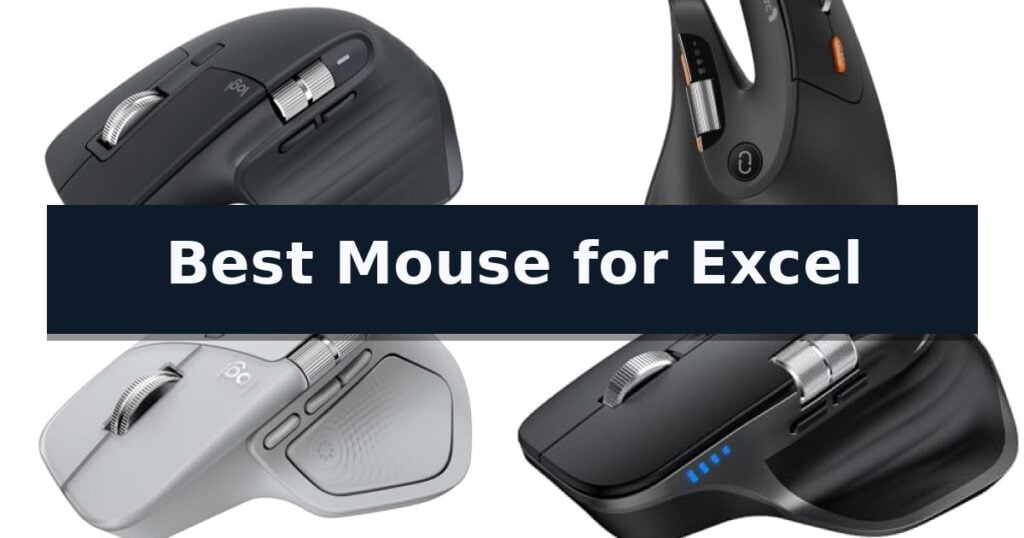
10 Best Mouse for Excel in 2026 Reviews
Quick Comparison
| Product | Best For | Key Strength | Score |
|---|---|---|---|
| Logitech MX Master 3S Wireless Mouse | Best Overall | MagSpeed scrolling for fast and precise navigation of large documents. | 4.9 |
| ProtoArc EM11 Pro Ergonomic Mouse | Side scroll wheel for wide workspaces | Side scroll wheel for efficient horizontal document navigation | 4.8 |
| Logitech MX Master 4 Wireless Mouse | Haptic feedback for complex workflows | Haptic Sense Panel provides tactile feedback for improved command accuracy. | 4.6 |
| TECKNET Wireless Mouse | Horizontal navigation with side wheel | Dedicated side scroll wheel for efficient horizontal navigation. | 4.4 |
| Logitech G502 HERO Wired Mouse | Hyper-fast scrolling for long documents | High-precision HERO 25K sensor for accurate cursor control. | 4.9 |
| Logitech G502 X LIGHTSPEED Mouse | Infinite scroll toggle for data entry | Infinite scroll toggle for rapid navigation through large datasets. | 4.4 |
| Pixiecube Excel Cheat Sheet Desk Pad | Commands and formulas at your fingertips | Comprehensive shortcut reference printed directly on the mat surface. | 4.3 |
| Uolr Excel Cheat Sheet Desk Pad | Visual reference for spreadsheet power | Comprehensive color-coded reference for Excel formulas and hotkeys. | 4.7 |
| CHIZEKOO Excel Cheat Sheet Desk Pad | Color-coded zones for faster navigation | 7-zone color-coded layout for quick shortcut identification | 4.7 |
| Kinevolve Excel Shortcut Mouse Pad | Compact guide for professional efficiency | Integrated shortcut guide for Excel, Word, and PowerPoint. | 4.6 |
How We Chose
Evaluating the best tools for spreadsheet management requires a focus on navigation speed and input efficiency. We analyze how effectively each device handles horizontal scrolling, button programmability, and long-term ergonomic comfort, ensuring that the hardware actively reduces the physical strain and time overhead associated with intensive data entry and analysis.
- Horizontal and vertical scrolling performance for large spreadsheet navigation.
- Customizable button profiles to map frequently used Excel shortcuts.
- Ergonomic shape and weight distribution for extended daily use.
- Sensor accuracy and DPI sensitivity for precise cell selection.
- Multi-device connectivity and software integration for seamless workflow transitions.
1 Logitech MX Master 3S Wireless Mouse — Precision scrolling for massive sheets
Navigating massive spreadsheets requires precision and comfort, and the Logitech MX Master 3S Wireless Mouse is engineered specifically for these high-demand tasks. Its standout feature is the MagSpeed scrolling mechanism, which allows for remarkable speed and precision, enabling you to zip through thousands of rows in a document with near-silent operation.
Beyond its scrolling capabilities, this mouse features an 8K DPI sensor that provides high-accuracy tracking on virtually any surface, including glass. This ensures that your cursor movements remain fluid and responsive, even when you are working on unconventional desk materials. The device is also designed with Quiet Clicks, which deliver a tactile, satisfying feel while reducing click noise by 90% compared to standard models, making it an ideal choice for shared office environments.
Ergonomics play a central role in the design, with a silhouette crafted to promote a more natural wrist posture during long sessions of data entry or analysis. The mouse includes optimally placed thumb controls that can be customized via the Logi Options+ app. This software allows you to create app-specific profiles, letting you map complex Excel shortcuts directly to the mouse buttons to streamline your workflow.
For users managing multiple machines, the FLOW cross-computer control feature allows you to move your cursor between different computers—even between Windows and macOS—and transfer text, images, or files seamlessly. It supports connectivity with up to three devices via Bluetooth, offering a flexible, cable-free setup that keeps your workspace tidy.
Best for: Data analysts and power users who require high-precision scrolling and customizable shortcuts for efficient spreadsheet management.
Skip if: Users who prefer a lightweight, ambidextrous design or those who specifically require a wired connection for their workflow.
- MagSpeed scrolling for fast and precise navigation of large documents.
- 8K DPI sensor that tracks accurately on almost any surface including glass.
- Quiet Clicks technology significantly reduces noise during intensive use.
- Logi Options+ customization allows for app-specific workflow optimization.
- Bluetooth-only connectivity means no included USB receiver or charging cable.
- Ergonomic right-handed shape is not suitable for left-handed users.
2 ProtoArc EM11 Pro Ergonomic Mouse — Side scroll wheel for wide workspaces
Navigating expansive spreadsheets and complex project timelines requires hardware that minimizes repetitive movement, and the ProtoArc EM11 Pro Ergonomic Mouse addresses this with a dedicated side scroll wheel. By allowing horizontal navigation without dragging the on-screen scroll bar, this feature helps maintain focus during intensive data entry and document review sessions.
The vertical ergonomic design is engineered to position the forearm and wrist in a natural handshake orientation, which reduces the twisting often associated with standard flat mice. This shape is specifically tailored for users with hand lengths between 19.0 and 21.5 cm, providing a contoured surface that supports the palm and encourages a relaxed grip during long hours of office work.
Efficiency is further supported by browser-based button customization, which allows users to map common commands like copy and paste to six configurable buttons without needing to install external software. The mouse also features adjustable DPI up to 7200, enabling users to toggle between high-precision control for detailed tasks and faster cursor movement for navigating multi-monitor setups.
Connectivity and power management are designed for modern hybrid workflows. The ProtoArc EM11 Pro Ergonomic Mouse supports multi-device switching across three connections—two Bluetooth 5.0 channels and one 2.4 GHz USB-A receiver—allowing seamless transitions between a laptop, desktop, or tablet. A built-in 500mAh rechargeable battery eliminates the need for disposable cells, utilizing a USB Type-C port for convenient power replenishment.
New users should note that the vertical orientation requires a period of adaptation. The manufacturer recommends a 1–2 week adjustment phase to allow muscles to acclimate to the different grip, ensuring the ergonomic benefits are fully realized after the initial transition.
Best for: Users with large hands who require efficient horizontal navigation for wide spreadsheets and multi-device productivity.
Skip if: Users with smaller hands or those who prefer a traditional low-profile mouse shape that does not require an adjustment period.
- Side scroll wheel for efficient horizontal document navigation
- Vertical ergonomic shape designed for large hands
- Multi-device connectivity via Bluetooth and 2.4 GHz receiver
- Browser-based customization requiring no software installation
- Rechargeable 500mAh battery with USB-C charging
- Adjustment period of 1–2 weeks required for new users
- Specific hand size requirement of 7.5–8.5 inches
3 Logitech MX Master 4 Wireless Mouse — Haptic feedback for complex workflows
Navigating complex spreadsheets requires precision and speed, and the Logitech MX Master 4 Wireless Mouse addresses this with its Haptic Sense Panel. This feature provides customizable haptic feedback for specific actions and shortcuts, allowing you to feel confirmation when executing commands within your workflow.
Efficiency in Excel is further enhanced by the Actions Ring, a dynamic, customizable overlay that adapts to your active application. This tool places your most-used filters, adjustments, and shortcuts directly at your cursor, reducing the need to navigate through deep menus. For long data sets, the MagSpeed scroll wheel offers the ability to scroll 1,000 lines per second while maintaining pixel-level precision.
The device is built with an ergonomic design featuring a natural tilt and a dedicated thumb scroll wheel to help reduce hand stress during extended sessions. To maintain a focused environment, the Quiet Clicks mechanism provides a soft, satisfying tactile feel while reducing click noise by 90%.
Connectivity is handled via a high-performance USB-C dongle with an optimized antenna for reliable performance, or through Bluetooth for added versatility. The mouse is constructed with sustainability in mind, utilizing recycled plastics and a battery containing 100% recycled cobalt, ensuring a durable build that is designed for longevity.
Best for: Power users who require high-precision navigation and customizable shortcuts for complex data management and spreadsheet workflows.
Skip if: Users who prefer a lightweight, symmetrical, or ambidextrous mouse design may find the ergonomic, right-handed tilt of this model less comfortable.
- Haptic Sense Panel provides tactile feedback for improved command accuracy.
- MagSpeed scroll wheel enables rapid navigation of large spreadsheets.
- Actions Ring offers a customizable, app-specific shortcut overlay.
- Quiet Clicks reduce noise for focused work environments.
- Right-handed ergonomic design may not suit all grip styles or left-handed users.
- Advanced feature set may require a learning curve to fully optimize custom shortcuts.
4 TECKNET Wireless Mouse — Horizontal navigation with side wheel
Navigating expansive spreadsheets requires more than just standard cursor movement, and the TECKNET Wireless Mouse addresses this with a dedicated side-mounted scroll wheel designed for effortless horizontal navigation. By allowing users to shift through wide data sets with a gentle flick of the finger, this design choice helps reduce wrist strain during extended work sessions.
Beyond its specialized scrolling, the TECKNET Wireless Mouse offers versatile connectivity by supporting up to three devices simultaneously. Users can toggle between two Bluetooth 5.3/5.0 connections and a 2.4GHz USB-A receiver using a single button, facilitating a streamlined workflow across multiple computers without the need for additional software.
Precision is managed through a high-performance chip that provides six adjustable DPI levels, ranging from 800 to 4800. An integrated LED indicator provides visual feedback on the current setting, ensuring users can switch between granular control for detailed cell editing and faster tracking for general navigation.
The device is built for productivity-focused environments, featuring quiet clicks that minimize audible distractions. It is also a rechargeable unit, offering up to three months of use on a single charge based on two hours of daily activity, and includes an auto-sleep function to conserve power when idle.
Best for: Users who frequently navigate wide spreadsheets and need to switch between multiple computers seamlessly.
Skip if: Users who require programmable side buttons or specific software-based customization, as this model is non-programmable.
- Dedicated side scroll wheel for efficient horizontal navigation.
- Seamless 3-device switching via Bluetooth and 2.4GHz connectivity.
- Rechargeable battery with long-lasting performance.
- Quiet click switches for a distraction-free workspace.
- Non-programmable buttons limit custom shortcut mapping.
- Side buttons are not supported on macOS.
5 Logitech G502 HERO Wired Mouse — Hyper-fast scrolling for long documents
Navigating complex spreadsheets requires hardware that prioritizes precision and rapid navigation, and the Logitech G502 HERO Wired Mouse addresses these needs with its high-performance HERO 25K sensor. This sensor provides tracking up to 25,600 DPI without smoothing, filtering, or acceleration, ensuring that every movement across your data sets is captured with exactitude.
Efficiency in Excel often relies on quick access to frequently used commands. This mouse features 11 programmable buttons that allow for custom mapping of macros or shortcuts, potentially streamlining repetitive tasks. The inclusion of a dual-mode hyper-fast scroll wheel is particularly beneficial for users who frequently navigate long documents or massive workbooks, enabling rapid vertical movement.
Customization extends beyond software settings to physical ergonomics. The Logitech G502 HERO Wired Mouse includes an adjustable weight system, allowing users to arrange up to five 3.6g weights to achieve a preferred balance. This physical tuning can help reduce fatigue during extended periods of data entry or analysis.
Durability and tactile feedback are integrated through mechanical switch button tensioning. By utilizing a metal spring tensioning system and pivot hinges, the primary buttons provide a consistent, crisp click feel. This design choice ensures reliable input registration during high-volume work sessions.
Best for: Power users who need high-precision tracking and customizable shortcuts for navigating large, complex Excel spreadsheets.
Skip if: Users who prefer a minimalist, lightweight design or a wireless setup for a clutter-free workspace.
- High-precision HERO 25K sensor for accurate cursor control.
- 11 programmable buttons to map Excel shortcuts and macros.
- Dual-mode hyper-fast scroll wheel for rapid document navigation.
- Adjustable weight system for personalized balance and feel.
- Wired connection limits freedom of movement compared to wireless alternatives.
- Complex design may be excessive for users who only perform basic data entry.
6 Logitech G502 X LIGHTSPEED Mouse — Infinite scroll toggle for data entry
Navigating dense spreadsheets requires more than just basic cursor movement; the Logitech G502 X LIGHTSPEED Mouse features a signature infinite scroll toggle that allows for rapid vertical navigation through thousands of rows of data. By shifting the scroll wheel into free-spin mode, users can bypass manual scrolling to reach specific data points in seconds, a significant advantage for heavy Excel users.
Beyond its navigation capabilities, this mouse integrates the HERO 25K gaming sensor, which provides sub-micron precision. This level of accuracy ensures that every click and movement is registered without smoothing, filtering, or acceleration, maintaining consistent control during detailed cell selection or complex formula entry. The LIGHTSPEED wireless protocol further enhances this experience by delivering a 68 percent faster response rate compared to previous generations, ensuring that input latency does not interfere with productivity.
The hardware design focuses on customization and durability. It includes 13 programmable buttons and a reversible, removable DPI-shift button, allowing users to map frequently used Excel shortcuts or macros directly to the mouse. The integration of LIGHTFORCE hybrid optical-mechanical switches provides a crisp, tactile response for each click, designed to maintain reliability over extended periods of use.
Connectivity and power management are streamlined via USB-C charging, and the device is compatible with PowerPlay charging systems for continuous operation. While it is built with high-performance gaming architecture, its ergonomic shape and versatile button layout translate effectively to professional workflows requiring high-frequency input.
Best for: Power users who require rapid vertical scrolling and customizable macro buttons for complex spreadsheet management.
Skip if: Users who prefer a minimalist, lightweight, or ambidextrous mouse design will find the G502 X's larger, button-heavy profile unnecessary and potentially cumbersome.
- Infinite scroll toggle for rapid navigation through large datasets.
- 13 programmable buttons for custom Excel macros and shortcuts.
- LIGHTFORCE hybrid switches for consistent, tactile click response.
- High-precision HERO 25K sensor for accurate cursor control.
- Larger physical footprint may not suit users with smaller hands or those preferring compact peripherals.
- Complex button layout requires a learning curve to master for non-gaming productivity tasks.
7 Pixiecube Excel Cheat Sheet Desk Pad — Commands and formulas at your fingertips
Navigating complex spreadsheets often requires quick access to formulas and commands, and the Pixiecube Excel Cheat Sheet Desk Pad provides a dedicated reference surface that keeps essential shortcuts directly under your hands. By integrating a comprehensive guide for navigation, selection, and data functions into a 31.5 x 11.8-inch workspace, this mat eliminates the need to toggle between windows or search online for syntax.
Beyond its reference utility, the mat serves as a functional desktop accessory. The 2 mm soft surface offers comfort during long work sessions, while the water-resistant and stain-resistant material protects your desk from spills and daily wear. The inclusion of built-in desk-exercise diagrams provides a practical way to incorporate movement and stretching into a sedentary office routine.
Durability is addressed through a rugged stitched edge designed to prevent fraying over time, ensuring the mat maintains its structural integrity. The non-slip base keeps the pad securely in place, providing a stable foundation for both your keyboard and mouse. This combination of reference material and protective desk coverage creates a more organized and efficient workstation for power users.
While the mat is optimized for spreadsheet workflows, its size is substantial enough to accommodate various keyboard and mouse configurations. The clear organization of commands ensures that users can find the right function without cluttering their screen, allowing for a more streamlined and focused approach to data management.
Best for: Excel power users who want to improve their workflow efficiency by keeping essential shortcuts and formulas immediately accessible on their desk surface.
Skip if: Users who prefer a minimalist desk aesthetic or those who require a smaller mouse pad footprint that does not cover their entire keyboard area.
- Comprehensive shortcut reference printed directly on the mat surface.
- Water-resistant and stain-resistant material for easy maintenance.
- Rugged stitched edges to prevent fraying and increase longevity.
- Built-in desk-exercise diagrams to encourage movement during the workday.
- Large footprint (31.5 x 11.8 inches) may not fit smaller desk setups.
8 Uolr Excel Cheat Sheet Desk Pad — Visual reference for spreadsheet power
Navigating complex spreadsheets often requires constant reference to technical commands, which can disrupt your workflow. The Uolr Excel Cheat Sheet Desk Pad addresses this by integrating a comprehensive, color-coded guide directly into your workspace. This 31×11.8-inch surface provides an expansive area for your keyboard and mouse while keeping essential formulas and hotkeys within your immediate field of vision.
Beyond its utility as a reference tool, the desk pad is engineered for workspace stability. It features a thick rubber backing that acts as an anti-slip base, ensuring the mat remains stationary during intensive data entry or gaming sessions. The 2-mm soft-smooth surface is optimized for precise cursor tracking, providing a consistent experience for various mouse types.
Durability is a core component of its design, highlighted by reinforced stitched edges that prevent fraying or peeling over time. The surface is also waterproof and stain-resistant, allowing for easy cleanup of accidental spills. Using advanced thermal-transfer printing, the text and diagrams remain sharp and legible, resisting fading even after frequent cleaning.
The mat includes practical value-adds such as built-in desk-stretch exercise diagrams designed to help alleviate physical strain during long hours at a desk. Whether you are a finance professional or a student, this all-in-one desk accessory serves as both a functional mouse surface and a permanent, high-contrast reference guide for spreadsheet management.
Best for: Spreadsheet users and data entry professionals who want a permanent, accessible reference for Excel formulas and shortcuts while maintaining a stable, protected desk surface.
Skip if: Users who prefer a minimalist desk aesthetic or require a specific surface texture for high-precision competitive gaming may find the printed reference guide distracting or unnecessary.
- Comprehensive color-coded reference for Excel formulas and hotkeys.
- Waterproof and stain-resistant surface for easy maintenance.
- Reinforced stitched edges to prevent fraying and ensure long-term durability.
- Non-slip rubber backing provides a stable base for keyboards and mice.
- Large physical footprint may not fit on smaller or crowded desks.
- Printed text is permanent and cannot be updated if software shortcuts change.
9 CHIZEKOO Excel Cheat Sheet Desk Pad — Color-coded zones for faster navigation
Navigating complex spreadsheets becomes significantly more intuitive when you have essential commands physically mapped out on your workspace. The CHIZEKOO Excel Cheat Sheet Desk Pad serves as a functional reference tool, featuring a 7-zone layout that organizes shortcuts by Navigation, Selection, Formatting, and Data functions. By keeping these commands in plain sight, you can reduce the need to toggle between windows, potentially streamlining your workflow.
Beyond its utility as a reference guide, this mat functions as a high-performance surface for your peripherals. Its buttery-smooth top surface is engineered for consistent, lag-free tracking, making it suitable for both professional data entry and casual use. The rubber non-slip base ensures the pad remains stationary during intensive tasks, while the 31.5 x 11.8 inch footprint provides ample coverage for both a keyboard and a mouse.
Durability is addressed through high-quality construction materials designed for long-term office use. The thermal transfer printing ensures that the shortcut text remains sharp and fade-resistant, even with daily interaction. Furthermore, the precision stitched edges prevent fraying and curling, maintaining a flat, professional appearance on your desk over time.
Maintenance is straightforward thanks to the waterproof surface of the mat. Accidental spills from coffee, water, or ink can be wiped away in seconds, protecting your desktop underneath. This combination of functional shortcut mapping and reliable desk protection makes it a practical addition to any spreadsheet-heavy workstation.
Best for: Users who frequently work in Excel and want to improve their speed by having common shortcuts visible at all times.
Skip if: Users who prefer a minimalist desk aesthetic or those who do not use Excel frequently enough to benefit from a dedicated shortcut reference mat.
- 7-zone color-coded layout for quick shortcut identification
- Waterproof surface that is easy to wipe clean
- Precision stitched edges to prevent fraying
- Non-slip rubber base for stable tracking
- Large footprint may not fit on smaller or crowded desks
10 Kinevolve Excel Shortcut Mouse Pad — Compact guide for professional efficiency
Navigating complex spreadsheets often requires constant toggling between menus, but the Kinevolve Excel Shortcut Mouse Pad integrates a comprehensive reference guide directly into your workspace. By placing essential Excel, Word, PowerPoint, and Windows shortcut keys right under your hand, this pad minimizes the need to memorize commands or search through software menus, potentially streamlining your daily workflow.
Measuring 11.8" x 9.8", this mouse pad is designed for portability, fitting easily into laptop bags for professionals or students on the move. The surface is engineered for smooth and precise mouse control, ensuring that your cursor movements remain accurate whether you are navigating dense data sets or managing general office tasks.
Durability and stability are addressed through a non-slip rubber base that keeps the pad securely in place during intensive use. The stitched edges are specifically included to reduce fraying over time, while the water-resistant fabric allows for easier maintenance and cleaning. High-resolution printing ensures that the shortcut text remains legible even after repeated use.
This tool serves as a practical addition to any office setup, particularly for those who frequently switch between Microsoft Office applications. While it provides a helpful physical reference, users should note that the shortcut guide is fixed and cannot be customized to reflect personal macro settings or specific software versions.
Best for: Professionals and students who want quick, physical access to Microsoft Office and Windows shortcuts to improve navigation speed.
Skip if: Users who prefer a minimalist desk aesthetic or those who rely exclusively on custom-mapped macros that differ from standard Windows defaults.
- Integrated shortcut guide for Excel, Word, and PowerPoint.
- Stitched edges to prevent fraying and increase longevity.
- Non-slip rubber base for stable operation.
- Water-resistant fabric for easy cleaning.
- Fixed shortcut reference cannot be customized for personal workflows.
Best Mouse for Excel Buying Guide
The Importance of Horizontal Scrolling
Spreadsheets often expand far beyond the width of a standard monitor, making horizontal navigation a frequent necessity. Mice equipped with dedicated side scroll wheels or infinite-scroll toggles allow you to traverse columns instantly without needing to manually drag the bottom scroll bar.
When choosing a device, prioritize those that offer tactile, high-speed scrolling mechanisms. This feature significantly reduces the time spent on manual adjustments, allowing you to maintain focus on data analysis rather than interface navigation.
Customization and Shortcut Mapping
Modern productivity mice often include programmable buttons that can be assigned to specific Excel commands. By mapping functions like copy, paste, or filter to your mouse, you can keep your hands on the device and reduce the need to reach for keyboard shortcuts during repetitive tasks.
Look for software-supported devices that allow for application-specific profiles. This ensures your mouse buttons automatically switch to your preferred Excel configuration whenever the spreadsheet application is active, providing a seamless transition between different work tasks.
Ergonomics for Long Sessions
Data entry is often a sedentary, time-intensive task that can lead to wrist and forearm strain. Ergonomic mice, particularly vertical models, are designed to place the hand in a more natural handshake position, which may help reduce muscle tension over long periods.
Consider the physical dimensions of the mouse in relation to your hand size. A well-fitted mouse provides better palm support and reduces the need for a cramped grip, which is essential for maintaining comfort during high-volume work days.
Sensor Precision and DPI
While high DPI settings are often associated with gaming, they are equally useful for spreadsheet work on high-resolution or multi-monitor setups. A precise sensor allows for accurate cell selection and quick cursor movement across large, dense workspaces.
Adjustable DPI settings allow you to find the balance between speed and control. Being able to lower the sensitivity for precise cell alignment and increase it for rapid movement across multiple screens is a key advantage for power users.
Connectivity and Multi-Device Support
Many professionals work across multiple computers or tablets simultaneously. Mice that support multi-device pairing via Bluetooth or dedicated receivers allow you to switch between systems with a single button press, keeping your workspace organized.
Reliable wireless connectivity is crucial for maintaining a clean desk. Ensure the device offers a stable connection and, if rechargeable, a battery life that supports your typical work cycle to avoid mid-task interruptions.
Frequently Asked Questions
Do I need a gaming mouse for Excel?
While gaming mice often feature high-precision sensors and many buttons, they are not strictly necessary. However, their programmable buttons and adjustable DPI can be useful for power users who want to map complex macros.
What is the benefit of a side scroll wheel?
A side scroll wheel allows for horizontal navigation in spreadsheets. It is significantly faster than using the on-screen scroll bar and helps you move through wide datasets without breaking your workflow.
Are vertical mice better for spreadsheet work?
Vertical mice are designed to reduce wrist strain by promoting a neutral hand position. If you experience discomfort during long hours of data entry, a vertical mouse may offer a more comfortable alternative to traditional flat designs.
Can I use a mouse with multiple computers?
Yes, many modern productivity mice support multi-device connectivity, allowing you to pair with up to three computers and switch between them using a button on the bottom or side of the device.
Do I need special software to use programmable buttons?
Most advanced mice require manufacturer-specific software to customize button functions. Once configured, these settings are often saved to the mouse's onboard memory or managed through the software running in the background.
Conclusion: Our Top Pick
Our top pick is Logitech MX Master 3S Wireless Mouse. The right mouse for Excel is one that minimizes the physical effort required to navigate and manipulate data. By prioritizing features like side scrolling, programmable buttons, and ergonomic support, you can significantly improve your efficiency during long spreadsheet sessions.
Ultimately, the best choice depends on your specific workflow and hand comfort. Whether you prefer the advanced haptics and precision of a premium wireless model or the specialized layout of an ergonomic vertical mouse, investing in the right hardware will pay off in sustained productivity.