3Dconnexion SpaceMouse Pro Wireless is our top choice for the Best Mouse for 3D Modeling, offering a specialized Six-Degrees-of-Freedom sensor that allows for intuitive, simultaneous pan, zoom, and rotate operations that standard mice cannot replicate.
For designers who require a more traditional form factor, the 3Dconnexion CadMouse Compact provides a dedicated middle mouse button and high-resolution sensor specifically tuned for CAD software environments. Meanwhile, the Nulea Wireless Trackball serves as a strong alternative for those prioritizing wrist health, utilizing thumb-based navigation to minimize repetitive arm movement during long modeling sessions.
Selecting the right hardware for 3D workflows requires balancing specialized navigation tools against standard ergonomic peripherals. While dedicated 3D controllers provide unmatched efficiency for complex assemblies, traditional mice and trackballs remain essential for precise cursor placement and menu interaction.
If you are looking for more specialized hardware, our guide on the Best Mouse for 3D CAD Modeling explores specific tools for engineering-focused workflows. For broader artistic applications, see our Best Mouse for 3D Design recommendations for creative professionals.
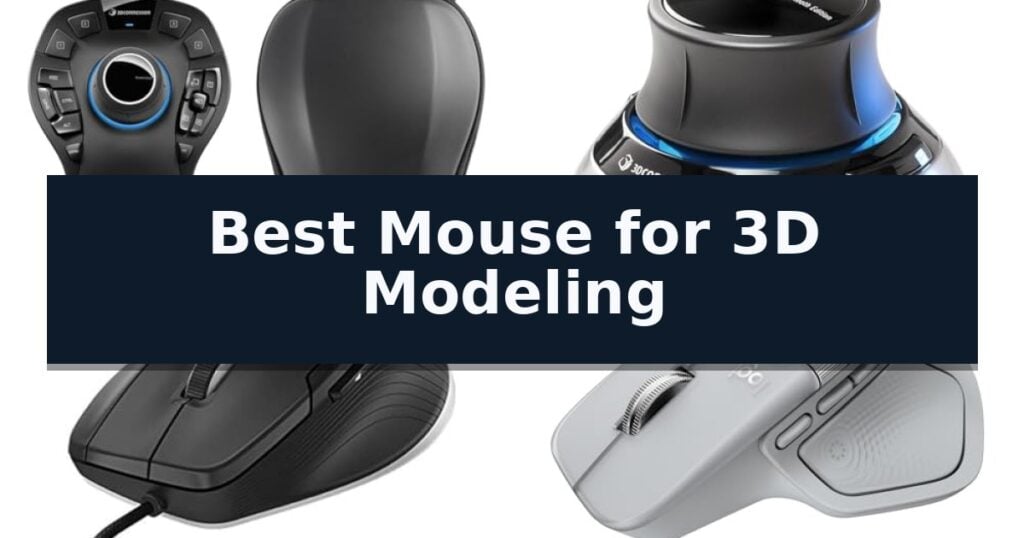
10 Best Mouse for 3D Modeling in 2026 Reviews
Quick Comparison
| Product | Best For | Key Strength | Score |
|---|---|---|---|
| 3Dconnexion SpaceMouse Pro Wireless | Best Overall | Six-Degrees-of-Freedom (6DoF) sensor for intuitive 3D model manipulation. | 4.9 |
| 3Dconnexion SpaceMouse Wireless | Compact 3D navigation essential | Advanced 3D navigation for fluid model manipulation. | 4.5 |
| 3Dconnexion CadMouse Compact | Precision for CAD workflows | Dedicated middle mouse button reduces finger fatigue during 3D navigation. | 4.3 |
| Logitech MX Master 4 | Haptic feedback for design | Haptic Sense Panel provides tactile confirmation for shortcuts and notifications. | 4.4 |
| TECKNET Wireless Mouse | Efficient horizontal canvas scrolling | Dedicated side scroll wheel for efficient horizontal navigation. | 4.4 |
| Logitech Ergo M575S | Space-saving thumb control | Ergonomic sculpted shape reduces forearm muscle strain. | 4.6 |
| Nulea Wireless Trackball | Natural wrist tilt for modeling | Ergonomic 21.7° tilt stand for improved wrist posture. | 4.9 |
| Nulea M501 Wireless Trackball | Stable tracking on any surface | Ergonomic thumb-operated trackball reduces wrist and arm fatigue. | 4.9 |
| UGREEN Ergonomic Wireless Mouse | Vertical design reduces strain | Vertical handshake design reduces wrist rotation and muscle fatigue. | 4.3 |
| TECKNET Wireless Mouse (B0CW9T3RJR) | Versatile multi-device switching | 6 adjustable DPI levels for precise control | 4.6 |
How We Chose
Evaluating the best mouse for 3D modeling requires a focus on how hardware interacts with complex spatial software. An experienced reviewer prioritizes input versatility, ergonomic design to prevent strain, and the ability to customize buttons for specific modeling shortcuts, ensuring the tool enhances rather than hinders the creative process.
- Navigation precision and sensor resolution
- Ergonomic support for long-duration use
- Programmable button layout and software integration
- Connectivity reliability and wireless range
- Compatibility with industry-standard 3D software
1 3Dconnexion SpaceMouse Pro Wireless — Professional 3D navigation control
Navigating complex 3D environments requires more than a standard mouse; it demands precise, multi-axis control. The 3Dconnexion SpaceMouse Pro Wireless BT is engineered specifically for this purpose, utilizing a Six-Degrees-of-Freedom (6DoF) sensor that allows users to pan, zoom, and rotate models simultaneously with a single hand.
This device is built for professional workflows, offering both wireless and USB-C connectivity to maintain a clean workspace while ensuring reliable input. By incorporating Bluetooth Low Energy technology, it provides flexible pairing options for modern workstations, ensuring that the navigation controller remains responsive during intensive design sessions.
Power management is handled by an integrated rechargeable Li-poly battery with 1100 mAh capacity, designed to support extended periods of use without frequent interruptions. The hardware is specifically tuned for CAD and 3D modeling software, separating navigation duties from the primary selection mouse to reduce repetitive strain and improve overall efficiency.
While this controller significantly enhances spatial manipulation, it is a specialized tool rather than a replacement for a standard pointer. Users should ensure their primary software environment supports 3Dconnexion’s specific navigation protocols to fully leverage the 6DoF sensor capabilities.
Best for: Professional 3D designers and CAD engineers who require dedicated, multi-axis navigation control to streamline complex modeling workflows.
Skip if: Casual users or those who do not work in 3D modeling environments will find the specialized navigation controls unnecessary for standard desktop tasks.
- Six-Degrees-of-Freedom (6DoF) sensor for intuitive 3D model manipulation.
- Flexible wireless and USB-C connectivity options.
- Integrated rechargeable Li-poly battery for cordless operation.
- Bluetooth Low Energy support for modern workstation integration.
- Specialized functionality requires specific software support to be effective.
- Dedicated navigation hardware occupies additional desk space compared to a standard mouse.
2 3Dconnexion SpaceMouse Wireless — Compact 3D navigation essential
Precision in 3D environments requires more than a standard pointer, and the 3Dconnexion SpaceMouse Wireless addresses this by offering specialized advanced 3D navigation. By utilizing a controller cap that allows for simultaneous panning, zooming, and rotating, users can manipulate complex models with fluid, intuitive movements that a traditional mouse cannot replicate.
Designed for flexibility, the device features both wireless and USB-C connectivity, ensuring a clean workspace without sacrificing responsiveness. The internal rechargeable battery is engineered to provide up to 1 month of operation between charges, minimizing downtime during intensive design sessions. For those who move between workstations, the included lightweight and durable carry case provides essential protection during transit.
The interface includes 2 programmable side buttons, which allow users to map frequently used commands for faster access within professional CAD and modeling software. This layout focuses on efficiency, keeping the user's hand in a natural position while navigating complex geometry.
While this device excels at spatial manipulation, it is intended to be used alongside a standard mouse rather than as a replacement for one. Its specialized form factor is optimized specifically for 3D interaction, making it a dedicated tool for professional workflows rather than a general-purpose peripheral.
Best for: Professional designers and engineers who require precise, intuitive spatial navigation within 3D modeling and CAD software.
Skip if: Users who need a single, all-in-one pointing device for general desktop navigation, as this unit is designed to complement, not replace, a standard mouse.
- Advanced 3D navigation for fluid model manipulation.
- Long-lasting battery providing up to 1 month of use.
- Wireless and USB-C connectivity for versatile setup.
- Programmable side buttons for workflow efficiency.
- Durable carry case included for portability.
- Requires a separate standard mouse for complete desktop control.
- Specialized learning curve for mastering 3D navigation movements.
3 3Dconnexion CadMouse Compact — Precision for CAD workflows
Precision in complex 3D environments requires hardware that minimizes physical strain while maximizing input accuracy. The 3Dconnexion CadMouse Compact is specifically engineered for CAD professionals, featuring a dedicated middle mouse button that removes the repetitive stress often caused by clicking the scroll wheel during frequent model manipulation and pan operations.
At the core of this device is a high-resolution sensor designed to maintain consistent, accurate tracking across a variety of workstation surfaces. Its compact ergonomic shape is tailored for designers who prefer a smaller, more maneuverable footprint, ensuring that specialized input controls remain accessible without requiring an oversized chassis that might clutter a professional desk setup.
Functionality is further refined by a total of 7 buttons, five of which are fully programmable to align with individual software workflows. The integration of the Smart Mouse Wheel 2 provides the precise, controlled scrolling and zooming necessary when navigating intricate 3D assemblies or detailed technical sketches, allowing for smoother transitions between view states.
Built for long-term professional reliability, the unit is supported by a 3-year manufacturer limited warranty. It offers a focused, streamlined interface for designers who require a dependable, wired tool that integrates seamlessly into a workstation dedicated to high-precision technical modeling, providing a consistent experience without the potential latency or battery management concerns of wireless alternatives.
Best for: Professional CAD designers and 3D modelers who require a compact, specialized mouse with a dedicated middle button for frequent navigation tasks.
Skip if: Users who prefer a larger, full-sized mouse chassis or those who require wireless connectivity options, as this model is a wired USB device.
- Dedicated middle mouse button reduces finger fatigue during 3D navigation.
- Compact ergonomic shape ideal for smaller hands or limited desk space.
- 7 total buttons with 5 programmable inputs for workflow customization.
- 3-year manufacturer limited warranty provides long-term support.
- Wired USB connection limits mobility compared to wireless alternatives.
- Compact size may feel too small for users with larger hands.
4 Logitech MX Master 4 — Haptic feedback for design
Precision input is the cornerstone of complex 3D modeling, and the Logitech MX Master 4 addresses this through its integrated Haptic Sense Panel. This feature provides customizable haptic feedback for specific shortcuts and notifications, allowing designers to feel the confirmation of their inputs during intricate workflows. By combining tactile response with an ergonomic design, this mouse aims to maintain user comfort during extended sessions of CAD or 3D rendering.
Beyond its haptic capabilities, the mouse features the MagSpeed scroll wheel, which is engineered to scroll up to 1,000 lines per second while maintaining pixel-level precision. This is complemented by the Actions Ring, a dynamic, customizable overlay that adapts to the active application, placing frequently used filters and adjustments directly at the cursor. These tools are designed to streamline navigation within complex software environments.
Connectivity and build quality are central to the Logitech MX Master 4 design. It utilizes a USB-C dongle with an advanced radio chip and optimized antenna to provide reliable performance, alongside Bluetooth versatility. The chassis incorporates recycled plastics—54% in the Graphite model and 48% in the Pale Grey version—and features improved stain resistance to ensure longevity in a professional workspace.
The device is optimized for quiet operation, with Quiet Clicks technology reducing noise by 90% compared to standard models, which is beneficial for focused, distraction-free environments. Additionally, the inclusion of a thumb scroll wheel provides a secondary axis for navigation, further reducing hand stress during fluid 3D modeling tasks.
Best for: Professional 3D modelers and designers who require tactile feedback and customizable shortcuts to optimize complex software workflows.
Skip if: Users who prefer a lightweight, symmetrical gaming mouse or those who do not require advanced haptic and multi-axis scrolling features.
- Haptic Sense Panel provides tactile confirmation for shortcuts and notifications.
- MagSpeed scroll wheel allows for high-speed navigation and pixel-precise control.
- Actions Ring offers a customizable, app-specific overlay for quick tool access.
- Quiet Clicks reduce operational noise by 90% for focused work environments.
- Ergonomic tilt design may require an adjustment period for users accustomed to flat, ambidextrous mice.
- Feature-heavy interface may be excessive for users who do not utilize advanced software shortcuts.
5 TECKNET Wireless Mouse — Efficient horizontal canvas scrolling
Navigating complex design canvases requires tools that prioritize both precision and workflow efficiency. The TECKNET Wireless Mouse addresses these needs with a dedicated side-mounted scroll wheel, allowing for seamless horizontal navigation across spreadsheets and design interfaces without requiring constant cursor repositioning.
Engineered for multitasking, this device supports seamless 3-device switching through two Bluetooth 5.3/5.0 connections and a 2.4GHz USB-A receiver. Users can toggle between hardware configurations with a single button, facilitating a streamlined workspace. The inclusion of a precision-crafted metal scroll wheel adds a tactile, durable interface element that distinguishes it from standard plastic alternatives.
For tasks requiring varying levels of accuracy, the mouse features 6-level adjustable DPI control (ranging from 800 to 4800 DPI), indicated by an integrated LED. The quiet click mechanism is designed for environments where noise reduction is necessary, ensuring that high-frequency inputs do not disrupt a focused workspace.
Power management is handled by an internal rechargeable battery, which offers up to 3 months of usage based on 2 hours of daily activity. The device also includes an auto-sleep function that activates after 10 minutes of inactivity to preserve charge. While the hardware is robust, users should note that the side buttons are not supported on macOS, and the unit is strictly non-programmable.
Best for: Designers and professionals who require horizontal scrolling and multi-device connectivity in a quiet, rechargeable package.
Skip if: Users who rely on custom macro programming or those operating exclusively on macOS who require full functionality of side-mounted buttons.
- Dedicated side scroll wheel for efficient horizontal navigation.
- Multi-device connectivity supporting up to three simultaneous connections.
- High-precision 6-level DPI adjustment up to 4800 DPI.
- Quiet click switches for noise-sensitive environments.
- Non-programmable buttons limit custom workflow mapping.
- Side button incompatibility with macOS systems.
6 Logitech Ergo M575S — Space-saving thumb control
Precision is paramount when navigating complex 3D environments, and the Logitech Ergo M575S addresses this by utilizing a stationary trackball design that eliminates the need for large, sweeping hand movements. By keeping your hand in a fixed, sculpted position, this device allows for high-fidelity cursor control using only your thumb, which is particularly advantageous for long sessions of modeling or rendering where repetitive motion can lead to fatigue.
The Logitech Ergo M575S is engineered to promote a more natural forearm posture, a benefit supported by ergonomic certification. Its design supports various hand sizes, ensuring that your wrist remains in a neutral position while you manipulate complex geometry or navigate 3D viewports. The inclusion of quiet clicks further enhances the workspace environment, minimizing auditory distraction during deep focus tasks.
Customization is a core component of its utility; users can leverage the Logi Options+ App to configure the 3 customizable buttons and assign time-saving shortcuts tailored to specific software workflows. Whether you are adjusting cursor sensitivity for fine-detail vertex manipulation or setting up Smart Actions, the mouse provides a flexible interface that adapts to your specific 3D modeling requirements.
Connectivity and maintenance are streamlined for professional setups. The device supports dual-mode connectivity via Bluetooth or the included Logi Bolt USB receiver, ensuring a stable link across different workstations. Furthermore, the trackball is designed for easy cleaning—simply eject the ball from its cage to clear out debris, ensuring the sensor maintains its precise and smooth tracking performance over time.
Best for: Digital artists and 3D modelers who require a space-saving, ergonomic input device to reduce forearm strain during extended design sessions.
Skip if: Users who prefer the traditional tactile feedback and rapid, wide-range cursor movement associated with high-DPI optical gaming mice.
- Ergonomic sculpted shape reduces forearm muscle strain.
- Stationary thumb-operated trackball saves significant desk space.
- Customizable buttons allow for software-specific workflow shortcuts.
- Dual-mode connectivity via Bluetooth or Logi Bolt receiver.
- Stationary design requires a learning curve for those accustomed to moving a traditional mouse.
- Manual trackball maintenance is required to keep the sensor path clear of debris.
7 Nulea Wireless Trackball — Natural wrist tilt for modeling
Precision is paramount when working in digital 3D environments, and the Nulea Wireless Trackball addresses this by shifting navigation from wrist-heavy mouse movements to a dedicated thumb-controlled trackball. This design choice minimizes repetitive arm fatigue, allowing for more sustained focus during complex modeling sessions.
The device features an ergonomic 21.7° tilt stand designed to place the hand in a more natural, neutral position. This elevated angle is intended to reduce strain on the wrist and forearm, which is particularly beneficial for professionals spending long hours at a desk. The inclusion of 4 adjustable DPI levels (400/800/1200/1600) provides the necessary sensitivity range to switch between broad navigation and fine-tuned detail work.
For those maintaining a multi-screen or multi-device workflow, the Nulea Wireless Trackball offers multi-device connectivity via Bluetooth or a 2.4G USB receiver. Users can pair up to three devices and switch between them instantly. The mouse also incorporates true silent control across all six buttons and the scroll wheel, ensuring a quiet workspace environment.
While the device is built for productivity, it is important to note that the six buttons are not programmable, which may limit users who rely on custom macros for specific 3D software workflows. However, the addition of dedicated back and forward buttons provides basic navigation efficiency out of the box.
Best for: Designers and modelers seeking to reduce wrist strain through a thumb-operated, ergonomic trackball interface.
Skip if: Users who require highly customized button mapping or programmable macros for complex 3D software shortcuts.
- Ergonomic 21.7° tilt stand for improved wrist posture.
- Thumb-controlled trackball reduces repetitive arm movement.
- Multi-device switching for seamless workflow across three devices.
- 4 adjustable DPI levels for varying precision requirements.
- Non-programmable buttons limit custom workflow configurations.
8 Nulea M501 Wireless Trackball — Stable tracking on any surface
Precision is paramount when working in 3D environments, and the Nulea M501 Wireless Trackball offers a unique approach to cursor control that prioritizes wrist health and spatial efficiency. By utilizing a smooth thumb-operated trackball instead of traditional arm movements, this device allows for high-accuracy navigation without requiring a large workspace, making it a practical choice for cluttered desks or compact creative setups.
The mouse features 4 adjustable DPI levels, providing the necessary sensitivity adjustments to switch between broad movements and fine-tuned detail work in modeling software. Its ergonomic design is specifically shaped to maintain a natural palm position, which helps reduce muscle stress during long sessions of sculpting or rendering. While the device includes 6 buttons for added utility, including back and forward functions, it is important to note that these buttons are not programmable.
Connectivity is handled through a versatile system that supports up to 3 devices via Bluetooth or the included USB dongle. Switching between connected hardware is managed by a button on the bottom, allowing for a seamless transition between different workstations. The internal rechargeable battery eliminates the need for disposable cells, though users should note the requirement to use the included cable and avoid fast chargers to maintain battery health.
The Nulea M501 Wireless Trackball is designed to function on almost any surface, from standard desks to unconventional spaces like couches or small writing boards. Its combination of wireless flexibility and a stationary footprint makes it a specialized tool for those who prefer an ergonomic, thumb-centric workflow over traditional mouse movement.
Best for: Users who require a compact, ergonomic workspace solution and prefer thumb-based cursor control for long-duration 3D modeling sessions.
Skip if: Users who rely heavily on custom macros or programmable buttons for their specific 3D modeling software workflows.
- Ergonomic thumb-operated trackball reduces wrist and arm fatigue.
- Multi-device connectivity allows switching between three devices via Bluetooth or USB.
- Adjustable DPI levels provide precise cursor control for detailed modeling.
- Rechargeable battery removes the need for disposable dry cell batteries.
- Non-programmable buttons limit custom workflow configurations.
- Charging limitations require specific 5V input, prohibiting the use of fast chargers.
9 UGREEN Ergonomic Wireless Mouse — Vertical design reduces strain
Precision is paramount when working in 3D, and the UGREEN Ergonomic Wireless Mouse addresses the physical toll of long design sessions with its unique vertical handshake orientation. By promoting a more natural wrist position, this design aims to reduce muscle strain during extended periods of modeling, sculpting, or rendering.
This mouse offers 4 adjustable DPI levels reaching up to 4000 DPI, allowing users to toggle between high-speed navigation and the granular control required for detailed vertex manipulation. The inclusion of PTFE glide feet ensures that the device moves across your desk surface with minimal friction, which is essential for maintaining steady, fluid cursor movements when working with complex geometry.
Efficiency is further supported by a 5-button layout that facilitates faster navigation, while the silent-click switches maintain a quiet environment during deep-focus work. Connectivity is highly flexible, featuring dual wireless options (2.4G and Bluetooth) that allow you to switch between up to three devices seamlessly, making it a versatile addition to a multi-workstation setup.
Compatibility is broad, supporting Windows, macOS, Linux, ChromeOS, and Android systems. It is powered by a single AA battery and utilizes a smart sleep mode to preserve energy. Please note that this model is specifically engineered for medium to large hands; users with smaller hands should consult the manufacturer's size guide to ensure proper ergonomics.
Best for: Designers with medium to large hands seeking a vertical, ergonomic solution to reduce wrist strain during long 3D modeling sessions.
Skip if: Users with small hands or those who prefer a traditional low-profile mouse shape will find the vertical design uncomfortable and difficult to navigate.
- Vertical handshake design reduces wrist rotation and muscle fatigue.
- 4-level adjustable DPI (up to 4000) for versatile cursor precision.
- Multi-device connectivity allows switching between three devices via Bluetooth or 2.4G.
- PTFE glide feet provide smooth, low-friction tracking.
- Not suitable for small hands due to the specific vertical form factor.
- Requires AA battery rather than an integrated rechargeable power source.
10 TECKNET Wireless Mouse (B0CW9T3RJR) — Versatile multi-device switching
Precision is paramount when navigating complex 3D environments, and the TECKNET Wireless Mouse (B0CW9T3RJR) addresses this with its 6 adjustable DPI levels, ranging from 800 to 4800. This sensitivity range allows users to toggle between fine-tuned adjustments for intricate modeling work and faster cursor speeds for general navigation.
Designed for versatility, this peripheral features dual-device connectivity, supporting both Bluetooth 5.0/3.0 and a 2.4G USB A connection. The ability to switch between two distinct devices with a single button press streamlines workflows for designers who frequently move between a workstation and a secondary laptop or tablet.
The TECKNET Wireless Mouse (B0CW9T3RJR) incorporates a silent click design for the primary buttons, which helps maintain a quiet environment in shared office spaces or home studios. While the scroll wheel and side buttons are not silent, the overall ergonomic profile is tailored for small to medium hands, promoting comfort during extended modeling sessions.
Power management is handled through automatic sleep technology, which helps preserve battery life when the device is not in use. The mouse is compatible with a wide range of operating systems, including Windows, macOS, Chrome, and Linux, though users should note that the side buttons are not functional on macOS systems.
Best for: Designers with small to medium hands who need to switch between two devices and require adjustable DPI for varying levels of modeling precision.
Skip if: Users with large hands or those who require fully programmable side buttons on macOS will find this model less suitable for their specific workflow.
- 6 adjustable DPI levels for precise control
- Dual-device switching via Bluetooth and USB
- Silent click operation for primary buttons
- 36-month warranty support
- Side buttons are incompatible with macOS
- Compact size may not suit larger hands
- Scroll wheel and side buttons are not silent
Best Mouse for 3D Modeling Buying Guide
The Role of 3D Navigation Controllers
Specialized 3D controllers, such as the SpaceMouse series, are designed to handle the unique demands of three-dimensional space. By using a 6DoF sensor, these devices allow users to manipulate models in a fluid, intuitive manner that mimics physical handling.
These controllers are intended to be used in conjunction with a standard mouse. The controller handles model orientation and navigation, while the mouse remains free for selecting tools, clicking menus, and performing precise geometry edits.
Ergonomics and Wrist Health
3D modeling often involves long hours of repetitive tasks, making ergonomic design a critical factor. Vertical mice and trackballs are popular choices because they encourage a more neutral wrist position, which can help reduce forearm tension.
When choosing an ergonomic device, consider the size of your hand and your preferred grip style. A device that is too large or too small can lead to discomfort, so look for models that offer adjustable tilt or specific sizing to match your anatomy.
Programmable Buttons and Workflow Efficiency
Efficiency in 3D software is often driven by the ability to execute commands quickly. Mice with multiple programmable buttons allow users to map frequently used tools, such as extrude, bevel, or snap, directly to their fingertips.
Software integration is key here. Ensure that the mouse you choose has robust driver support that allows for application-specific profiles, enabling your button assignments to change automatically as you switch between different modeling programs.
Sensor Precision and Tracking
For detailed modeling, cursor accuracy is non-negotiable. High-resolution sensors ensure that every subtle movement of your hand is translated accurately onto the screen, preventing the jitter or lag that can ruin fine-tuned adjustments.
Consider the surface you will be working on. Some high-end sensors are designed to track reliably on glass or glossy tabletops, which is a significant advantage for designers who work in varied environments or on minimalist desks.
Connectivity and Wireless Freedom
Wireless connectivity has become the standard for modern workstations, providing a clean desk setup without the drag of a cable. Bluetooth and 2.4GHz USB receivers are the two primary methods, with many devices offering both for maximum flexibility.
Battery life is a practical consideration for wireless users. Look for models with rechargeable batteries or long-lasting power management features to ensure your workflow is not interrupted by the need for frequent charging or battery swaps.
Frequently Asked Questions
Do I need a special 3D mouse for modeling?
While not strictly required, a 3D navigation controller significantly improves efficiency by allowing you to rotate and zoom models while simultaneously using a standard mouse for selection and editing.
Are trackballs better than standard mice for 3D design?
Trackballs can be better for users experiencing wrist strain because they eliminate the need for large arm movements. However, they may require a learning curve to achieve the same level of precision as a high-end optical mouse.
Can I use a gaming mouse for 3D modeling?
Yes, many gaming mice are excellent for 3D modeling due to their high-precision sensors and numerous programmable buttons, which can be mapped to software-specific shortcuts.
How do I choose the right size mouse?
Measure your hand from the base of your palm to the tip of your middle finger. Compare this to the manufacturer's size guidelines, as a mouse that fits your hand size will provide better support and reduce fatigue.
Is wired or wireless better for 3D work?
Wireless is generally preferred for a clutter-free workspace. Modern wireless technology offers performance parity with wired connections, provided you manage your battery life effectively.
Conclusion: Our Top Pick
Our top pick is 3Dconnexion SpaceMouse Pro Wireless. The best mouse for 3D modeling depends on your specific workflow and whether you prioritize specialized spatial navigation or traditional cursor control. For professionals managing complex 3D environments, a dedicated controller is an invaluable investment in productivity.
For those who prefer a more conventional approach, selecting a high-precision mouse with customizable buttons and ergonomic support will provide the necessary accuracy and comfort. Always consider your specific software requirements and hand ergonomics to ensure the best long-term fit.