Logitech MX Ergo S Wireless Trackball Mouse is our recommendation for the Best Wireless Rollerball Mouse for Laptop because its adjustable tilt angle and high-precision tracking provide a superior ergonomic experience for long-term comfort.
When selecting a trackball, experienced users prioritize the balance between wrist stability and customization. Models like the Logitech Ergo M575S offer a compact footprint for tight workspaces, while the Nulea M501 provides versatile multi-device switching for those managing multiple screens.
Choosing the right device involves evaluating how the thumb-operated ball integrates into your daily workflow. Features such as programmable buttons, quiet-click switches, and adjustable DPI settings allow you to tailor the cursor speed and functionality to your specific productivity needs.
If you are looking for a device that balances comfort with high-performance features, our guide to the Best Wireless Productivity Mouse offers additional insights into tools that streamline your daily tasks. For users who prioritize mobility alongside their trackball, the Best Wireless Portable Mouse guide provides excellent alternatives for those who frequently work on the go.
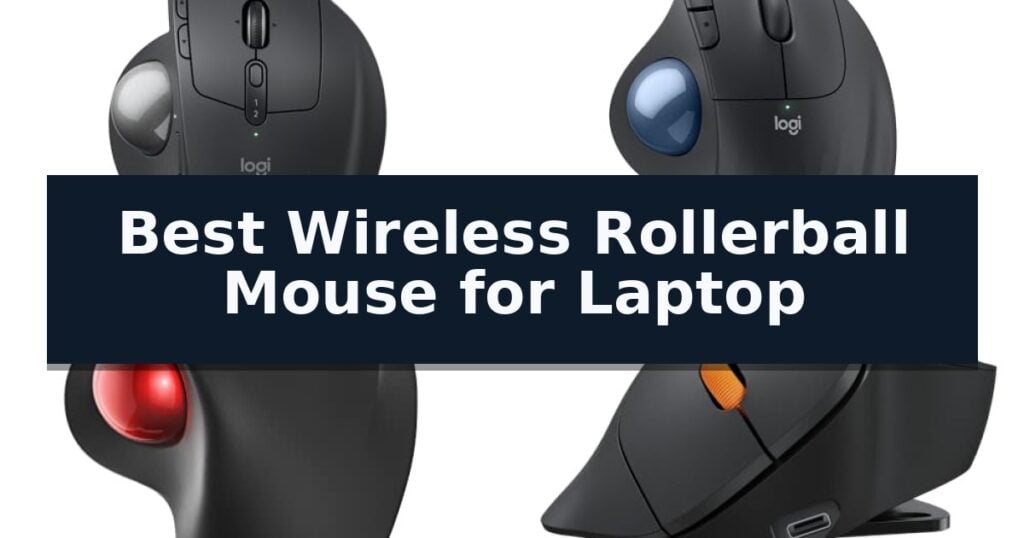
10 Best Wireless Rollerball Mouse for Laptop in 2026 Reviews
Quick Comparison
| Product | Best For | Key Strength | Score |
|---|---|---|---|
| Logitech MX Ergo S Wireless Trackball Mouse | Best Overall | 20-degree adjustable tilt for improved ergonomic posture. | 4.9 |
| Logitech Ergo M575S Wireless Trackball Mouse | Space-Saving Thumb Control | Stationary thumb-control design saves significant desk space. | 4.5 |
| Nulea M501 Wireless Trackball Mouse | Natural Palm Positioning | Ergonomic thumb-operated trackball reduces wrist and arm movement. | 4.9 |
| ProtoArc EM02 Wireless Trackball Mouse | Adjustable Tilt Comfort | Customizable 0°/15° tilt angle for personalized ergonomic comfort. | 4.5 |
| TECKNET Wireless Trackball Mouse | Ideal for Larger Hands | 16° vertical angle for improved forearm posture. | 4.9 |
| SABLUTE MAM1 Pro Wireless Trackball Mouse | Customizable Ergonomic Angles | Adjustable 18° ergonomic tilt to reduce forearm strain. | 4.4 |
| seenda Wireless Trackball Mouse | Compact Multi-Device Navigation | Thumb-accessible trackball reduces wrist and hand strain. | 4.9 |
| Nulea M508 Wireless Trackball Mouse | Integrated RGB Lighting | Stationary design reduces wrist and arm fatigue during long work sessions. | 4.4 |
| Kensington Orbit Wireless Trackball | Ambidextrous Scroll Ring Control | Ambidextrous design accommodates both left- and right-handed users. | 4.9 |
| ELECOM EX-G Wireless Trackball Mouse | High-Precision Optical Tracking | Ergonomic design tailored to hand anatomy to minimize strain. | 4.3 |
How We Chose
Evaluating the best wireless rollerball mouse for laptop use requires a focus on how these devices reduce repetitive strain while maintaining high productivity. We assess each model based on its ergonomic adaptability, the reliability of its wireless connection, and the ease of customizing buttons to streamline complex tasks in professional or creative workflows.
- Ergonomic design and adjustable tilt angles to support natural forearm posture.
- Connectivity options including Bluetooth and dedicated USB receivers for multi-device support.
- Customization capabilities such as programmable buttons and adjustable DPI levels.
- Battery life and charging convenience, specifically USB-C rechargeability versus replaceable cells.
- Build quality and surface tracking performance for varied work environments.
1 Logitech MX Ergo S Wireless Trackball Mouse — Advanced Ergonomic Precision
Precision control and ergonomic support define the Logitech MX Ergo S Wireless Trackball Mouse, a device engineered to minimize wrist movement during extended computing sessions. By utilizing a high-precision trackball, this mouse allows for cursor navigation without requiring the user to slide the device across a desk, making it a viable solution for tight workspaces.
The Logitech MX Ergo S Wireless Trackball Mouse features a unique 20-degree tilt angle designed to improve forearm posture and reduce muscle strain. This ergonomic design is complemented by a soft rubber grip and a sculpted shape tailored for medium- to large-sized hands. For those who prefer a quieter environment, the device is built with 80% quieter clicks compared to previous iterations.
Productivity is managed through the Logi Options+ App, which enables users to customize the 6 programmable buttons and implement time-saving shortcuts or Smart Actions. The mouse supports dual wireless connectivity via Bluetooth or the included Logi Bolt USB receiver, with an Easy-Switch button for toggling between devices. The internal rechargeable battery supports rapid charging, providing up to 24 hours of use from a one-minute charge or up to 120 days on a full charge.
Constructed with sustainability in mind, the plastic components of the Logitech MX Ergo S Wireless Trackball Mouse contain 20% certified post-consumer recycled plastic. The device is designed to integrate into an advanced workstation, pairing effectively with ergonomic peripherals like the ERGO K860 split-curved keyboard.
Best for: Users seeking to reduce wrist and forearm strain through a stationary, ergonomic trackball design.
Skip if: Users who require a traditional optical mouse for high-speed gaming or those who prefer a lightweight, portable design.
- 20-degree adjustable tilt for improved ergonomic posture.
- Dual wireless connectivity via Bluetooth and Logi Bolt receiver.
- Long-lasting battery life of up to 120 days on a full charge.
- Customizable buttons via the Logi Options+ App.
- Larger footprint compared to standard compact travel mice.
- Stationary design requires a learning curve for those accustomed to traditional mice.
2 Logitech Ergo M575S Wireless Trackball Mouse — Space-Saving Thumb Control
Maintaining a comfortable workspace often requires rethinking how you interact with your peripherals. The Logitech Ergo M575S Wireless Trackball Mouse addresses this by utilizing a stationary base that allows for precise cursor movement via thumb control, eliminating the need to slide your hand across the desk surface.
Designed with input from the Logi Ergo Lab, this device focuses on reducing forearm strain. Its sculpted shape is engineered to support the hand and promote a more natural forearm posture during extended use. The inclusion of quiet clicks ensures that the tactile experience remains unobtrusive in shared or quiet environments.
Connectivity is handled through either Bluetooth or the included Logi Bolt USB receiver, providing flexibility for various laptop setups. Users can further customize their experience by utilizing the Logi Options plus App to configure the three customizable buttons, assign time-saving shortcuts, and adjust cursor speed to match specific workflows.
Durability and sustainability are integrated into the design, with the plastic components manufactured using certified post-consumer recycled plastic. The device is powered by a single AA battery, which supports an impressive 18 months of battery life, minimizing the frequency of maintenance. For those who prioritize a clean workspace, the trackball can be easily ejected from its cage for routine cleaning.
Best for: Users seeking to reduce forearm movement and save desk space through a stationary, ergonomic thumb-operated interface.
Skip if: Users who prefer the tactile feedback of traditional optical mice or those who require a high-precision sensor for competitive gaming.
- Stationary thumb-control design saves significant desk space.
- Certified ergonomic shape helps reduce forearm muscle strain.
- Dual connectivity options via Bluetooth and Logi Bolt receiver.
- Extended 18-month battery life reduces maintenance needs.
- Customizable buttons via the Logi Options plus App.
- Stationary form factor requires a learning curve for those accustomed to traditional mice.
- Thumb-only control may not be suitable for all user preferences or hand sizes.
3 Nulea M501 Wireless Trackball Mouse — Natural Palm Positioning
The Nulea M501 Wireless Trackball Mouse shifts the cursor control from your wrist to your thumb, utilizing a smooth trackball to minimize muscle strain during extended use. Its ergonomic, curved shape is designed to maintain a natural palm position, making it a viable option for those looking to reduce repetitive motion stress in their workspace.
This device offers versatile connectivity, allowing you to pair with up to three devices simultaneously via Bluetooth or the included 2.4G USB receiver. A dedicated button on the bottom facilitates quick switching between connected hardware, which helps streamline workflows across multiple computers or tablets.
Equipped with four adjustable DPI levels, the mouse provides precise cursor movement suitable for various tasks and surface types, including compact areas like small writing boards or crowded desks. The unit features six buttons, including back and forward controls, to assist with navigation and productivity.
Power is managed by a built-in rechargeable battery, eliminating the need for disposable cells. For maintenance, the manufacturer recommends using the provided charging cable and connecting to a standard 5V charger or computer USB port, explicitly advising against the use of fast chargers to ensure the longevity of the internal battery.
Best for: Users seeking an ergonomic, space-saving input device that supports multi-device connectivity and reduces wrist movement.
Skip if: Users who require programmable buttons or those who prefer traditional optical mice that do not rely on thumb-based trackball navigation.
- Ergonomic thumb-operated trackball reduces wrist and arm movement.
- Multi-device connectivity allows switching between three devices via Bluetooth or USB.
- Rechargeable battery removes the need for disposable batteries.
- Adjustable DPI levels provide customizable cursor precision.
- Non-programmable buttons limit custom configuration options.
- Specific charging requirements prohibit the use of fast chargers.
4 ProtoArc EM02 Wireless Trackball Mouse — Adjustable Tilt Comfort
The ProtoArc EM02 Wireless Trackball Mouse offers a distinct ergonomic advantage through its customizable hinge, allowing users to toggle between a flat 0° and a tilted 15° position. This design choice aims to maintain a more natural hand posture, helping to reduce wrist strain during extended periods of computer use.
Beyond its adjustable tilt, this device features precise trackball control that eliminates the need for large wrist movements, making it an efficient solution for users working in tight or cluttered desk environments. The mouse includes five adjustable DPI settings ranging from 200 to 1600, providing the flexibility to fine-tune cursor speed to match specific workflow requirements.
Connectivity is handled via both 2.4GHz wireless and Bluetooth, allowing for seamless switching between three devices with a single button. The unit is USB-C rechargeable and boasts an impressive 90-day standby time on a full charge, ensuring consistent performance for daily tasks.
For those working in shared environments, the ProtoArc EM02 Wireless Trackball Mouse is equipped with quiet-touch buttons that minimize noise. While the device requires a brief adaptation period for those new to thumb-operated trackballs, it provides a stable, ergonomic alternative to traditional mice.
Best for: Users seeking a space-saving, ergonomic input device with multi-device connectivity and adjustable tilt for improved wrist comfort.
Skip if: Users who require dedicated forward/backward navigation buttons on Mac OS or those who prefer the traditional sliding motion of a standard optical mouse.
- Customizable 0°/15° tilt angle for personalized ergonomic comfort.
- Multi-device connectivity supporting both Bluetooth and 2.4GHz wireless.
- 90-day standby time via convenient USB-C charging.
- Five adjustable DPI settings for precise cursor control.
- Forward/backward buttons are not compatible with Mac OS.
- Learning curve required for users transitioning from traditional mice.
5 TECKNET Wireless Trackball Mouse — Ideal for Larger Hands
Maintaining proper wrist alignment during long hours of computer work is a common challenge, and the TECKNET Wireless Trackball Mouse addresses this with a unique 16° vertical angle designed to reduce forearm strain by up to 50%. This ergonomic design encourages a more natural hand position, making it a specialized tool for those who prioritize comfort during extended sessions.
Beyond its ergonomic shape, the device offers versatile connectivity options, allowing users to pair with up to three devices simultaneously via Bluetooth or a 2.4G wireless connection. Switching between these devices is handled through an instant button tap, providing a seamless workflow for users managing multiple machines. The mouse also features a 500mAh rechargeable battery, which supports a full day of use after only 15 minutes of charging.
Precision and customization are central to its performance, featuring five adjustable DPI levels ranging from 100 to 1200. This allows users to tailor the cursor sensitivity to their specific tasks, whether navigating web pages or working in detailed documents. The trackball mechanism itself is engineered for thumb control, which helps in navigating confined workspaces where traditional mouse movement is limited.
Designed specifically for medium to large hands, the mouse measures 5.5" x 4.1" x 2". While it offers significant ergonomic benefits, the manufacturer notes that users may require a 1–2 week adjustment period to become fully accustomed to the trackball interface. This period is recommended to allow the muscles to adapt to the new control method and realize the full comfort benefits of the design.
Best for: Users with medium to large hands seeking to reduce wrist strain through an ergonomic, thumb-operated trackball design.
Skip if: Users who prefer traditional optical mouse movement or those with smaller hands who may find the 5.5-inch length cumbersome.
- 16° vertical angle for improved forearm posture.
- Triple-device connectivity via Bluetooth and 2.4G.
- Fast-charging battery providing a full day of use from a 15-minute charge.
- Five adjustable DPI levels for customizable cursor sensitivity.
- Requires an adjustment period of 1–2 weeks for new users.
- Large physical footprint may not suit all desk setups or smaller hand sizes.
6 SABLUTE MAM1 Pro Wireless Trackball Mouse — Customizable Ergonomic Angles
The SABLUTE MAM1 Pro Wireless Trackball Mouse distinguishes itself with a unique 0° or 18° adjustable ergonomic tilt, allowing users to select a hand position that aligns with their natural resting posture. This design choice is specifically intended to mitigate wrist and forearm strain during extended periods of computer use, study, or office work.
Beyond its ergonomic frame, this device utilizes a thumb-operated trackball for cursor navigation. By eliminating the need to move the entire arm, the mouse remains functional in tight or cluttered workspaces where desk area is at a premium. The unit features 5 levels of adjustable DPI ranging from 800 to 4800, providing the flexibility to match cursor speed to specific tasks or screen resolutions.
Connectivity options include both Bluetooth and a 2.4GHz USB receiver, supporting up to three devices simultaneously with instant switching via a dedicated button. The mouse is rechargeable via USB-C and includes an optional soft ambient backlight. For those who prefer a quiet environment, the device is equipped with quiet-touch buttons to minimize clicking noise.
New users should anticipate a brief adjustment period, as operating a trackball requires a different motor skill set than a standard optical mouse. The manufacturer suggests a 1-2 week adaptation phase to fully realize the comfort benefits. Additionally, while a driver is available for Windows users to customize settings, it is not compatible with Mac OS.
Best for: Users working in limited desk spaces who require multi-device connectivity and ergonomic support to reduce wrist strain.
Skip if: Users who prefer traditional optical mouse movement or those who require full driver-based customization on a Mac OS system.
- Adjustable 18° ergonomic tilt to reduce forearm strain.
- Multi-device connectivity supporting up to three devices via Bluetooth and 2.4GHz.
- Space-saving thumb trackball design for cluttered desks.
- Rechargeable battery with convenient USB-C charging.
- Learning curve requiring 1-2 weeks for adaptation.
- Driver incompatibility with Mac OS systems.
7 seenda Wireless Trackball Mouse — Compact Multi-Device Navigation
Precision navigation often requires a departure from traditional mouse designs, particularly for those seeking to reduce repetitive wrist motion. The seenda Wireless Trackball Mouse addresses this by utilizing a thumb-accessible trackball, allowing users to control the cursor while keeping their hand stationary. This ergonomic approach is specifically contoured to support the natural curvature of the palm, aiming to minimize strain during extended work sessions.
Versatility is a core component of this device, featuring 3-device connectivity that supports both 2.4G USB and Bluetooth protocols. Users can toggle between a home PC, work laptop, or tablet with a single button press located on the back of the chassis. The inclusion of 5-level DPI settings allows for adjustable cursor sensitivity, ensuring the tracking remains precise across various surfaces, including fabrics and desks.
Maintenance and power management are streamlined through the rechargeable design. By utilizing the included charging cable to power the built-in batteries, the need for disposable replacements is eliminated. This focus on efficiency and space-saving comfort makes the seenda Wireless Trackball Mouse a practical addition to a compact workstation where minimizing clutter and maximizing input control are priorities.
Best for: Users seeking to reduce wrist strain through stationary, thumb-controlled navigation across multiple devices.
Skip if: Users who prefer the tactile feedback and rapid movement of a traditional optical mouse or those who require a larger footprint for specific grip styles.
- Thumb-accessible trackball reduces wrist and hand strain.
- 3-device connectivity via Bluetooth and 2.4G USB.
- Rechargeable battery eliminates the need for disposable replacements.
- 5-level DPI allows for customizable cursor precision.
- Thumb-only control may require an adjustment period for those accustomed to full-hand movement.
8 Nulea M508 Wireless Trackball Mouse — Integrated RGB Lighting
Maintaining a clean, efficient workspace often requires minimizing unnecessary movement, and the Nulea M508 Wireless Trackball Mouse addresses this by keeping the device stationary while you navigate. By utilizing a thumb-operated rollerball, this mouse allows for precise cursor control without requiring the arm or wrist to slide across your desk, making it a practical solution for tight workspaces or long editing sessions.
The device offers versatile connectivity, supporting 3-device wireless connection via a 2.4GHz USB receiver or two separate Bluetooth channels. This allows for seamless switching between a laptop, desktop, or tablet, catering to multi-device workflows. Users can further customize their experience by selecting from 4 adjustable DPI levels—400, 800, 1200, or 1600—to match their preferred cursor speed.
Ergonomics are central to the design, featuring a sculpted right-hand shape intended to support a more natural palm position. Beyond its functional utility, the mouse includes integrated RGB lighting within the trackball itself. A physical knob allows you to toggle through multiple lighting modes, such as flowing water, breathing, or solid colors, without the need for external software.
While the trackball design excels at reducing repetitive wrist motion, it represents a departure from traditional mouse movement. Users accustomed to sliding a standard mouse may require an adjustment period to master thumb-based precision. The unit is specifically shaped for right-handed use, which is a key consideration for those seeking a symmetrical or left-handed peripheral.
Best for: Office professionals and designers working in limited desk spaces who want to reduce wrist strain through stationary, thumb-based navigation.
Skip if: Users who prefer the tactile feedback of a traditional sliding mouse or those who require a left-handed ergonomic design.
- Stationary design reduces wrist and arm fatigue during long work sessions.
- Multi-device connectivity supports up to three devices via 2.4GHz and Bluetooth.
- Customizable DPI settings allow for precise cursor control adjustments.
- Integrated RGB lighting with physical control for aesthetic customization.
- Right-hand specific ergonomic shape limits use for left-handed individuals.
- Thumb-control learning curve may require adjustment for those used to standard mice.
9 Kensington Orbit Wireless Trackball — Ambidextrous Scroll Ring Control
Precision control and ergonomic comfort define the Kensington Orbit Wireless Trackball with Scroll Ring, a device engineered to minimize repetitive wrist and hand movement. By utilizing a stationary 40mm ball, users can navigate interfaces without the physical strain often associated with traditional mouse gliding.
The integrated scroll ring provides a tactile method for moving through documents and web pages, while the ambidextrous design ensures consistent functionality for both left- and right-handed users. Connectivity is handled via dual wireless options, supporting both 2.4 GHz and Bluetooth LE, protected by 128-bit AES government-grade encryption for secure operation.
Customization is a core feature, supported by four DPI settings (400, 800, 1,200, or 1,600) that allow for rapid adjustments between high-speed browsing and precision-focused editing. Through the downloadable KensingtonKonnect software, users can assign specific shortcuts to the buttons and fine-tune scrolling speed to match their workflow preferences.
While the device offers significant ergonomic benefits, it is important to note that the software is currently incompatible with Windows ARM-based computers. The unit measures 7.3 by 5.6 by 3.5 inches, providing a stable footprint for desktop use while maintaining a focus on reducing physical fatigue during extended work sessions.
Best for: Users seeking an ergonomic, ambidextrous pointing device that reduces wrist strain through stationary trackball navigation.
Skip if: Users who require compatibility with Windows ARM-based hardware or those who prefer the traditional gliding motion of a standard optical mouse.
- Ambidextrous design accommodates both left- and right-handed users.
- Dual wireless connectivity with secure 128-bit AES encryption.
- Customizable DPI settings allow for tailored cursor speed and precision.
- Integrated scroll ring simplifies document navigation.
- Software incompatibility with Windows ARM-based computers.
- Stationary design requires a learning curve for those accustomed to traditional mice.
10 ELECOM EX-G Wireless Trackball Mouse — High-Precision Optical Tracking
The ELECOM EX-G Wireless Trackball Mouse distinguishes itself through a specialized ergonomic design that maps to six distinct muscle and skeletal structures of the human hand, aiming to reduce wrist and hand strain during extended use. This thumb-operated device allows for precise cursor navigation without requiring the repetitive wrist movements associated with traditional mice.
Engineered for versatility, the mouse features a high-performance optical sensor paired with a red trackball, which is specifically chosen to enhance tracking accuracy. Users can toggle between 750 and 1500 DPI settings via a dedicated top-mounted switch, allowing for quick adjustments between high-speed movement and fine-tuned control. The unit also includes a bottom-mounted switch to toggle between High-Speed and Low-Energy modes to manage battery consumption.
Connectivity is handled via a 2.4GHz USB wireless receiver, providing a stable, cord-free workspace. The device is equipped with six programmable buttons, including a tilt scroll wheel that supports horizontal scrolling. By utilizing the downloadable ELECOM Mouse Assistant software, users can create personalized button profiles tailored to specific applications, further expanding the functional utility of the hardware.
Measuring 3.7 inches wide by 4.9 inches long and 1.9 inches high, the mouse is a compact addition to any desk setup. It operates on a single AA battery and is compatible with a wide range of operating systems, including Windows 11 and macOS 10.14 or later. This combination of ergonomic shaping and customizable controls makes it a practical tool for office tasks, creative software, or general navigation.
Best for: Users seeking an ergonomic, thumb-controlled input device to reduce wrist strain while maintaining high cursor precision.
Skip if: Users who prefer a traditional palm-grip mouse or those who require Bluetooth connectivity rather than a USB wireless receiver.
- Ergonomic design tailored to hand anatomy to minimize strain.
- 6 programmable buttons with tilt scroll wheel functionality.
- Adjustable DPI settings for customized cursor speed.
- Dual-mode power switch to balance performance and battery life.
- Requires a USB port for the 2.4GHz wireless receiver.
- Thumb-operated tracking may require a learning curve for those accustomed to standard mice.
Best Wireless Rollerball Mouse for Laptop Buying Guide
Ergonomic Benefits of Trackball Mice
Unlike traditional mice that require constant arm and wrist movement, trackball mice allow you to keep your hand stationary. This design significantly reduces the risk of repetitive strain injuries by isolating cursor control to the thumb or fingers.
Models featuring adjustable tilt angles, such as those offering 15 or 20-degree wedges, further enhance comfort by realigning the forearm. This subtle shift helps maintain a more natural, neutral position during extended work sessions.
Connectivity and Multi-Device Workflow
Modern wireless trackballs typically offer dual-mode connectivity, supporting both Bluetooth and 2.4GHz USB receivers. This flexibility is essential for users who switch between a laptop, desktop, and tablet throughout the day.
Look for devices with dedicated easy-switch buttons on the bottom or side. This allows for near-instant transitions between paired devices, ensuring your workflow remains uninterrupted as you move between different computing stations.
Customization and Productivity Features
Programmable buttons are a hallmark of high-end trackball mice. By using manufacturer software, you can assign specific shortcuts or macros to these buttons, which can drastically speed up tasks like document navigation or photo editing.
Adjustable DPI settings are equally important, as they allow you to fine-tune cursor sensitivity. Higher DPI settings are generally better for fast-paced navigation, while lower settings provide the precision needed for detailed design work.
Battery Life and Charging Standards
Rechargeable batteries have become the standard for premium trackball mice, often utilizing USB-C for fast and convenient power delivery. This eliminates the need for disposable batteries and ensures you can continue working while the device charges.
Some models still utilize traditional AA batteries, which can offer extremely long runtimes—sometimes exceeding a year. If you prefer a 'set it and forget it' approach, these models may be more suitable for your setup.
Maintenance and Long-Term Care
Trackball mice require periodic cleaning to maintain smooth operation. Dust and skin oils can accumulate in the ball cage, causing the cursor to stutter or feel sticky during use.
Most trackballs are designed to be easily popped out of their housing. Simply wiping the ball and the internal rollers with a dry, lint-free cloth is usually sufficient to restore the device to its original, fluid performance.
Frequently Asked Questions
How long does it take to get used to a trackball mouse?
Most users adapt to a trackball mouse within one to two weeks. During this time, it is normal to feel less precise, but consistent use will help build the necessary muscle memory for thumb or finger control.
Can I use a trackball mouse for gaming?
While trackballs are primarily designed for productivity and ergonomics, they can be used for casual gaming. However, they lack the rapid, large-scale movements often required in competitive fast-paced shooters.
Do I need special software to use the programmable buttons?
Yes, most manufacturers provide dedicated software, such as Logi Options+, to customize button functions. Note that some software may not be compatible with all operating systems, particularly older versions of macOS or Linux.
Are trackball mice better for small desks?
Trackball mice are excellent for small or cluttered desks because they do not require any surface area to move. You only need enough space to place the device itself, making them ideal for tight workspaces.
What should I do if the trackball feels sticky?
A sticky trackball is usually caused by dust or debris inside the ball cage. Eject the ball according to the manufacturer's instructions and clean the internal rollers with a soft, dry cloth to restore smooth movement.
Conclusion: Our Top Pick
Our top pick is Logitech MX Ergo S Wireless Trackball Mouse. The right trackball mouse can transform your desk setup by prioritizing ergonomics and efficiency. By choosing a model that matches your specific needs for connectivity and customization, you can significantly reduce daily strain while improving your overall productivity.
Whether you prioritize the advanced tilt and software support of the Logitech MX Ergo S or the compact, space-saving design of the Ergo M575S, these devices offer a practical solution for any laptop user looking to optimize their workspace.